

 English
 Deutsch
English ✓
Content › Assets › Image files
Upload images
To use images in mailings, they must be stored in the assets.
“Upload Image” opens the “Upload Asset” dialog. To upload an image:
- Enter a name: enter a name under “Give your new asset a name”, e.g. “offer_0123_2026”. The image will later appear under this name in the list and in the gallery.
- Select a file: click “Select Image File…” and select the image file in the file selection window of your computer. As long as no file has been selected, a warning icon is shown next to the button and “Upload” is greyed out.
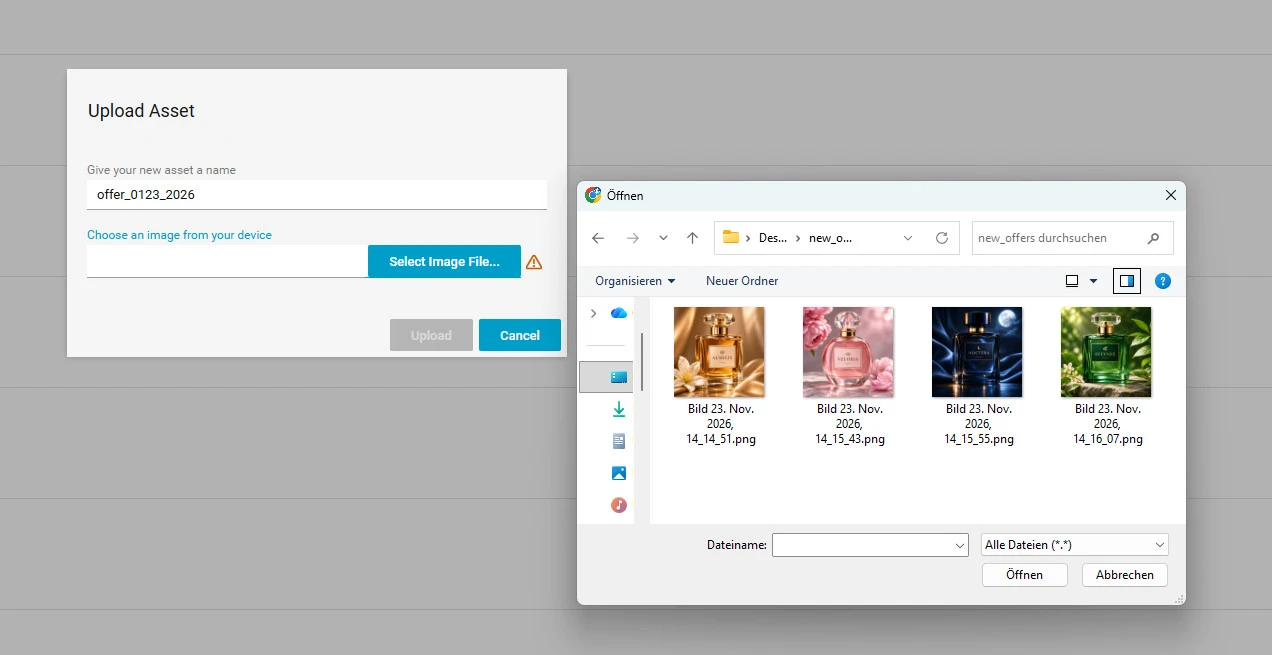
“Upload Asset” dialog with the file selection window open
- Upload: after selection, the file appears in the field under “Choose an image from your device”. For privacy reasons, the browser shows “C:\fakepath\…” instead of the real folder. “Upload” uploads the image, “Cancel” cancels the process.
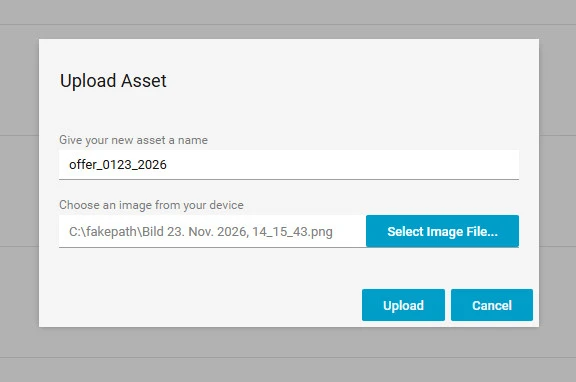
“Upload Asset” dialog with name and selected image file
After uploading, the MAS confirms with the message “Server Info – The image was successfully uploaded”. The image is then available in the assets.

Message after a successful upload
Clicking the image opens the “Asset Details” with name, URL, file size (Filesize), file type (Type), dimensions (Dimensions) as well as the time of creation (Created) and of the last change (Updated) (see “Gallery view”).
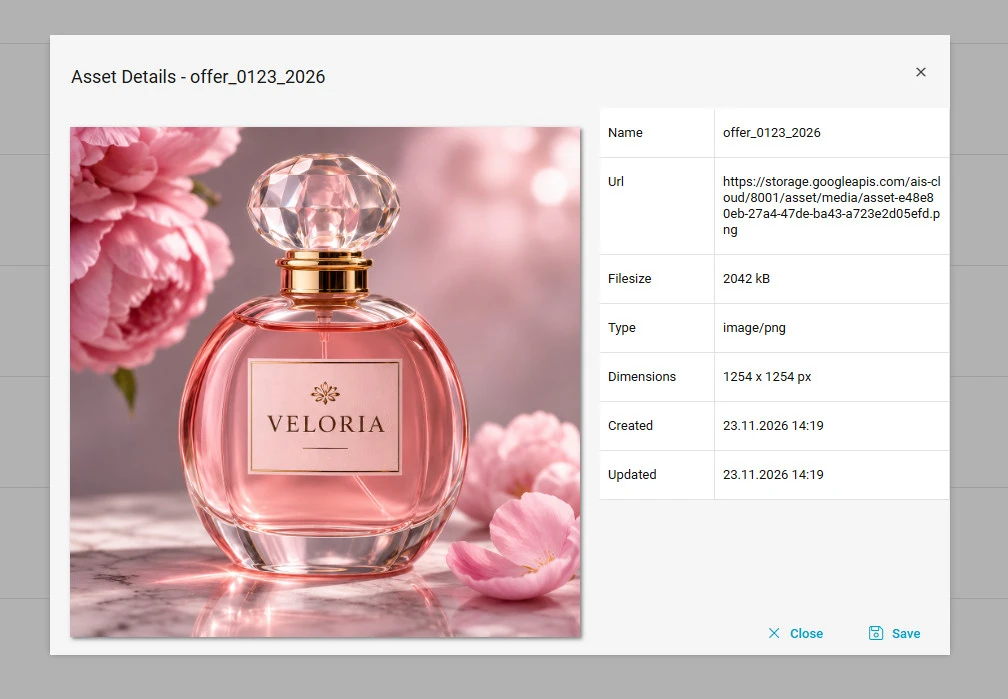
“Asset Details” of the uploaded image “offer_0123_2026”
The following image file formats are supported:
The data is then stored in Google Cloud Storage5.
One basic rule should be observed when using image formats:
JPG/JPEG: photos/detailed images
PNG: icons, graphics (e.g. buttons, statistics etc.), images with a transparent background
GIF: for short animated images (CAUTION! These are usually very large in terms of kB/MB – all images should be kept as small as possible!)
SVG: should not be used for emails, as many clients do not support this format.
WebP6 and AVIF7:
These image formats allow small file sizes but are not supported equally by all email applications. WebP is already widely used; AVIF is subject to greater restrictions. Transparency and animations may also be displayed differently depending on the application.
For the most reliable display of mailings, JPEG is recommended for photos and PNG for graphics or images with a transparent background. Only use WebP or AVIF if processing in the Marketing Automation Studio and display in the relevant email applications have been tested. The preview in the editor alone is not sufficient for this.
Sources and further reading
1 JPEG/JPG (Joint Photographic Experts Group): https://de.wikipedia.org/wiki/JPEG ↑ back
2 PNG (Portable Network Graphics): https://de.wikipedia.org/wiki/Portable_Network_Graphics ↑ back
3 GIF (Graphics Interchange Format): https://de.wikipedia.org/wiki/Graphics_Interchange_Format ↑ back
4 SVG (Scalable Vector Graphics): https://de.wikipedia.org/wiki/Scalable_Vector_Graphics ↑ back
5 Google Cloud Storage: https://cloud.google.com/storage ↑ back
6 WebP (image format by Google): https://de.wikipedia.org/wiki/WebP ↑ back
7 AVIF (AV1 Image File Format): https://de.wikipedia.org/wiki/AV1_Image_File_Format ↑ back




