

 English
 Deutsch
English ✓
MAS - Audiences › Conditions
Conditions
With the Conditions function, you can create content blocks with linked conditions, for example. These conditions ensure that the blocks are only shown to people who meet them (e.g. men over 40 – see the example below).

Overview of the conditions
Conditions are created and edited under the menu item “Audiences › Conditions”. The overview shows the name and the rule (“Rule” column) for each condition; the icons at the end of the row let you edit, copy or delete a condition.
To create a new condition, click “Create Condition” at the top right; to open an existing condition, use the edit icon. The form appears on the right-hand edge with the name (“Specify a name for your condition”), a description (“Enter a description for your condition”) and the rules (“Rules”).
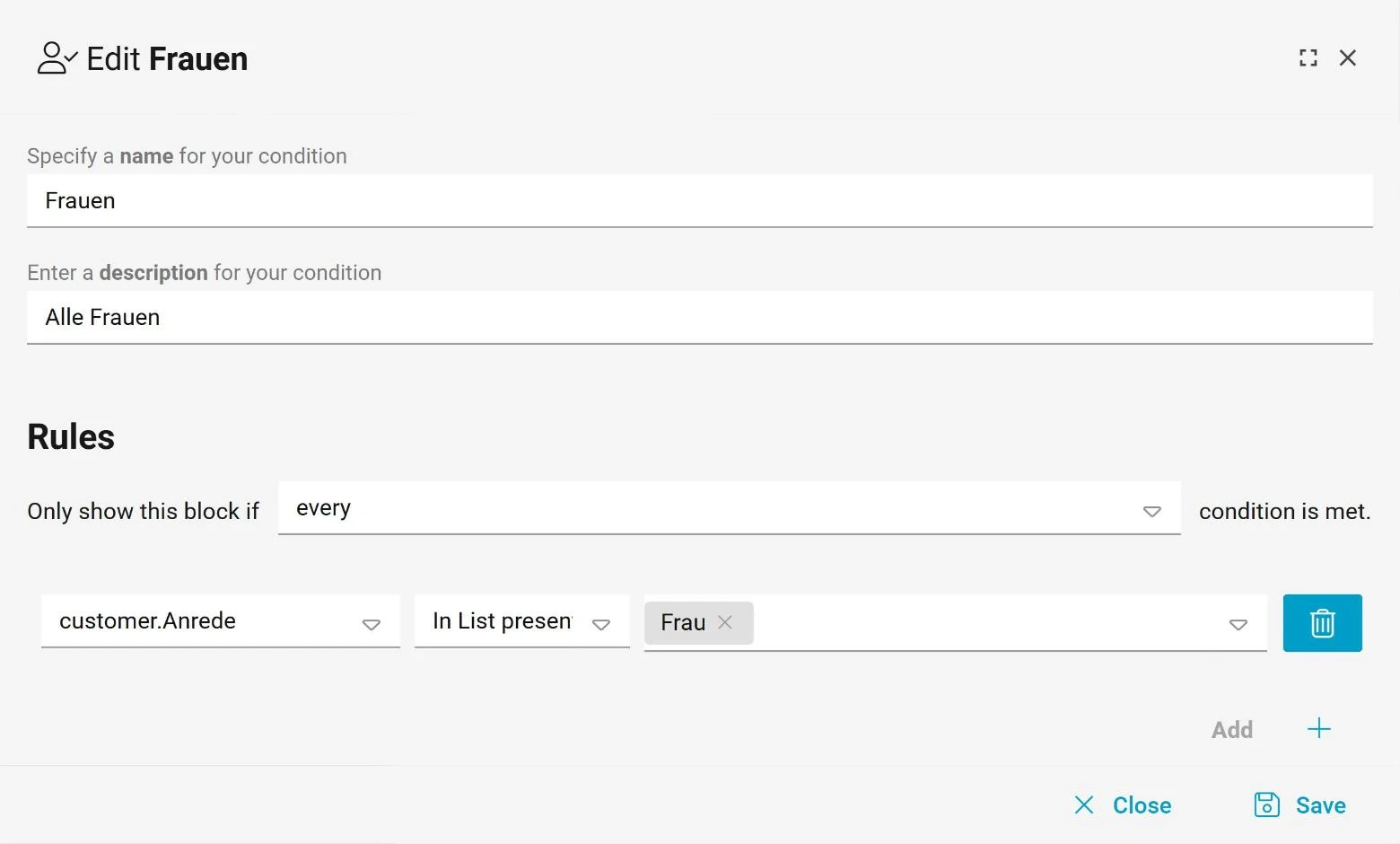
Form for editing a condition
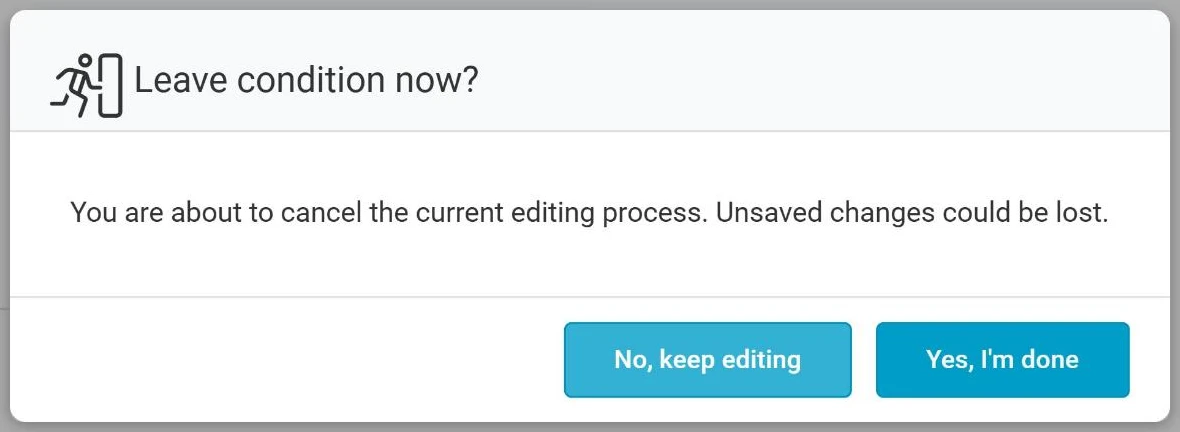
“Leave condition now?” prompt when closing the form
You can make the following settings:
Only show this block if a. every or b. any condition is met.
Meaning:
a. Show this block only if all conditions are met.
b. Show this block only if at least one condition is met.
Age > 40 AND Gender = Male → With every, only men over 40 would be shown the condition block.
Age > 40 OR Gender = Male → With any, the recipient must be either male or over 40 to be shown the condition block.
“Add” adds another rule. When you close the form with “Close”, the MAS asks “Leave condition now?”; “Yes, I’m done” closes the form without saving.
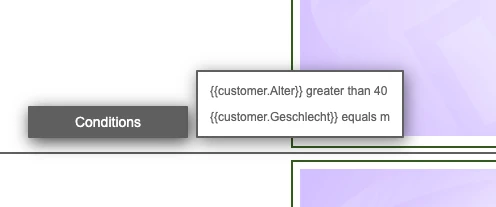
View of the conditions in the layout block within the template
Topics in this chapter
Structure and evaluation of Conditions
How rules are built from field, operator and comparison value.
Frequently asked questions
What is the difference between “every” and “any” in a condition?
With “every”, all rules must be met (AND link); with “any”, at least one rule being met is enough (OR link). This determines when the content block is shown. Read more ›
Which operator do I use to check whether a field is empty?
Use the operator “Null or Empty”; “Not null nor Empty” checks the opposite. Both have the cardinality Zero, so no comparison value is entered. Read more ›
Can a condition check whether a customer belongs to a particular target group?
Yes, with the operators “Member Of” and “Not Member Of”. A previously created target group is selected for the comparison. Read more ›
Why does a greater-than/less-than comparison with the postcode not work?
The data type determines which operators are possible, and a postcode stored as a String is a character string, not a numerical value. Greater-than/less-than comparisons require the data type Number. Read more ›
Do conditions also apply to the plain-text version of an email?
No, the condition is not applied to the text variant of an email. There, every block is displayed and sent in text form. Read more ›




