

 English
 Deutsch
English ✓
Content › Templates › Create Template › Create an initial template › Block: Content › Content-Block: Text
Tables in the text field
Inserting tables (e.g. from MS Office Excel) is possible in principle. However, their use is not recommended, as responsiveness and correct display cannot be guaranteed. Nevertheless, you can copy a prefabricated table from third-party software, paste it and edit it in the MAS.
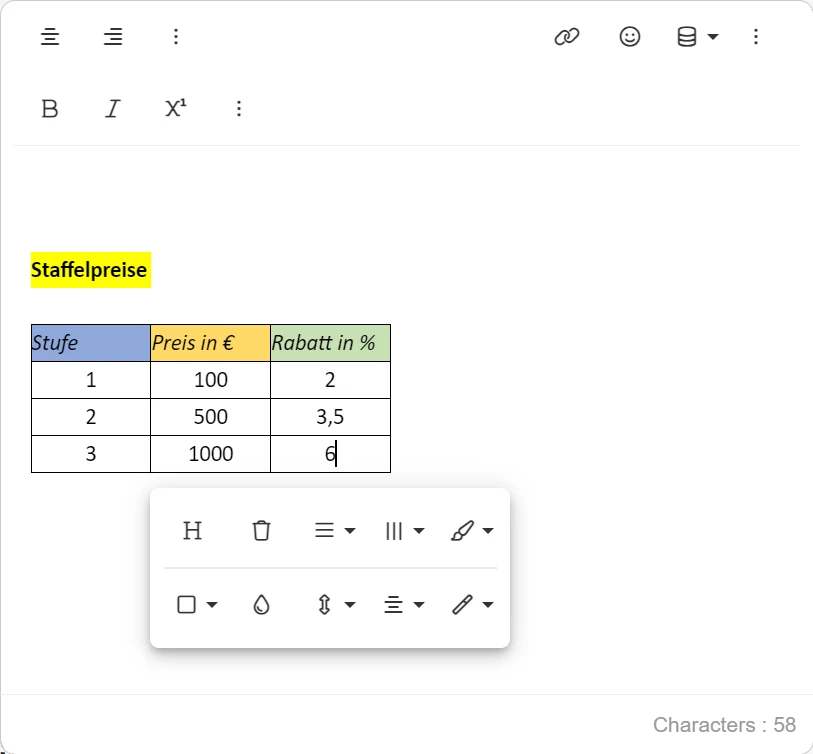
Table pasted from third-party software in the text field of the MAS
Using the arrow key on the blue line (below the table) you can insert a break. To do this, click next to or below the table in the editing mask.

Inserting a break below a table
The following functions are available for editing a table in the MAS:
Icon
Name
Function
Selection

Table Header
Header row
---

Remove Table
Removes the entire table
---

Row
Insert rows


Column
Insert columns
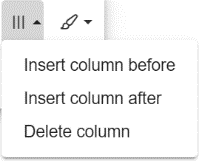

Table Style
Dashed border and two-coloured table rows (white/light grey)


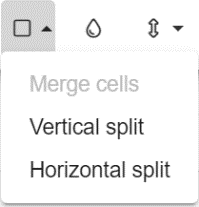
Cell
Merge cells, split vertically & horizontally

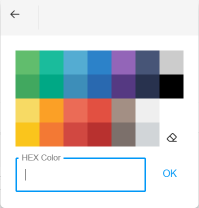
Cell Background
Select a background colour for the cell

Vertical Align
Vertical alignment of the content (top/middle/bottom)
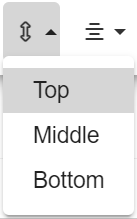

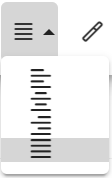
Horizontal Align
Horizontal alignment of the content (left/centre/right/ justified)

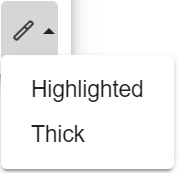
Cell Style
Highlight the content of a cell, cell content in bold
Overview of text editor functions “Table”




