

 English
 Deutsch
English ✓
Campaigns › Emails › Overview
Settings
The “Settings” button (with cog icon) at the top right opens the “Campaign Settings” dialogue with the general settings for the mailings.
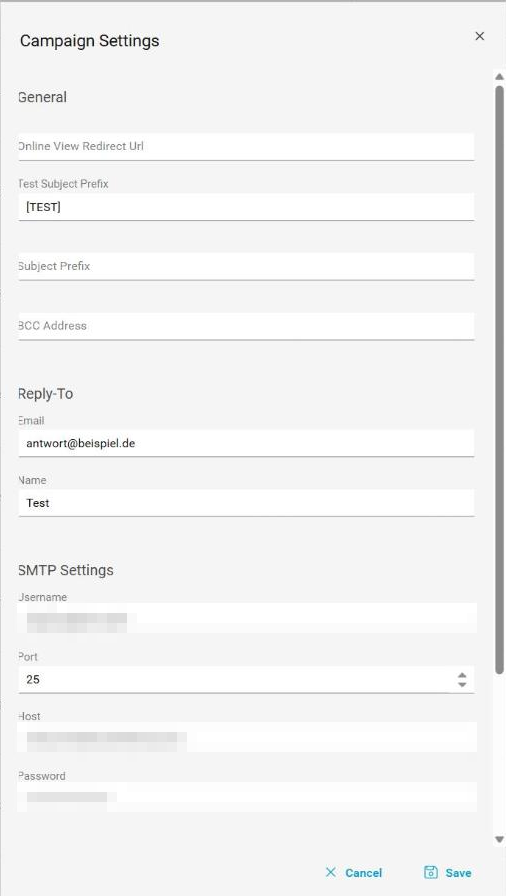
“Campaign Settings” dialogue (access data obscured)
Fill in the following fields:
Field (name)
Explanation
EXAMPLE
General – Online View Redirect Url
Redirect address for the online view of a mailing (see Content-Block: Onlineview).
https://news.example.com/online?h={{customerHash}}
General – Test Subject Prefix
Prefix before the subject that applies only to test emails.
[TEST] – Hello! This is a test newsletter
General – Subject Prefix
Prefix before the subject that applies to all email sends.
[ATTENTION] – Our new domain is live!
General – BCC Address
Blind carbon copy
blindkopie@aicgroup.de
Reply-To – Name
Reply-to name
Please do not reply
Reply-To – Email
Reply-to email
do-not-reply@aicgroup.de
From – Name
Sender name of the mailing
My AICGROUP
From – Email
Sender email
newsletter@news.aicgroup.de
SMTP-Settings – Username
The user name (email) of the SMTP server.
mailer@example.com
SMTP-Settings – Password
The password of the SMTP server.
••••••••
SMTP-Settings – Host
The host address of the SMTP server.
smtp.example.com
SMTP-Settings – Port
The port of the SMTP server.
587
“Campaign Settings” – overview
“Save” saves the settings; “Cancel” closes the dialogue without changes.
Note
The dialogue also contains the access data for the SMTP server. Only administrators should change these settings.




