

 English
 Deutsch
English ✓
Content › Templates › Create Template › Create an initial template
Tabs in the editor
At the bottom right of the editor are the tabs “Content Blocks”, “Links”, “Plain Text”, “Settings” and “Edit Design”. Tabs that do not fit into the bar can be reached via the arrows at the edge of the bar.

Tabs at the bottom right of the editor
- Content Blocks: the view when the editor opens. The “Standard” tab contains the building blocks “Layout”, “Dynamic Layout” and “Content” (see “Block: Layout” and “Block: Content”); the “Custom” tab contains the blocks saved by the user, e.g. a footer that is used again and again (see “Block: Custom”).

“Content Blocks” tab with the building blocks in the “Standard” tab
- Links: Here you can display all links in a template in one place. You can also check the links for quality or modify them.
- Plain Text: This field is used to create the text version of the HTML email. Initially this block is empty. You can fill it in two ways: 1. You write your own text and store it. 2. The “Generate Text from Template” button inserts the text elements and the links stored in the HTML into the field automatically. Editing this text afterwards is possible and advisable, because links are also inserted that may have nothing to do with the offers shown, e.g., in a newsletter. “Apply Changes” applies the changes.
- Settings: This is where the settings for the template are stored. At the top is the “Preview Text” field, below it the “Target Query Parameters”:
- Target Query Parameters1: The target query parameter explicitly targets values that occur in the query string of a URL.
- Examples:
- - utm_source for newsletter
- utm_medium for email
- utm_campaign for {{mailing.name}}
- You can add further entries with the “Add Query Parameter” button. These parameters are used, for example, in Google Analytics. You can delete parameters with the bin button. There is no confirmation prompt; the deletion takes effect immediately.
- Preview Text: The preview text is an excerpt of the body text of an email that many clients display in the inbox below the sender name and the subject line.
Use a maximum of 140 characters, as most email clients do not allow more characters and truncate the rest of the line with “...”.
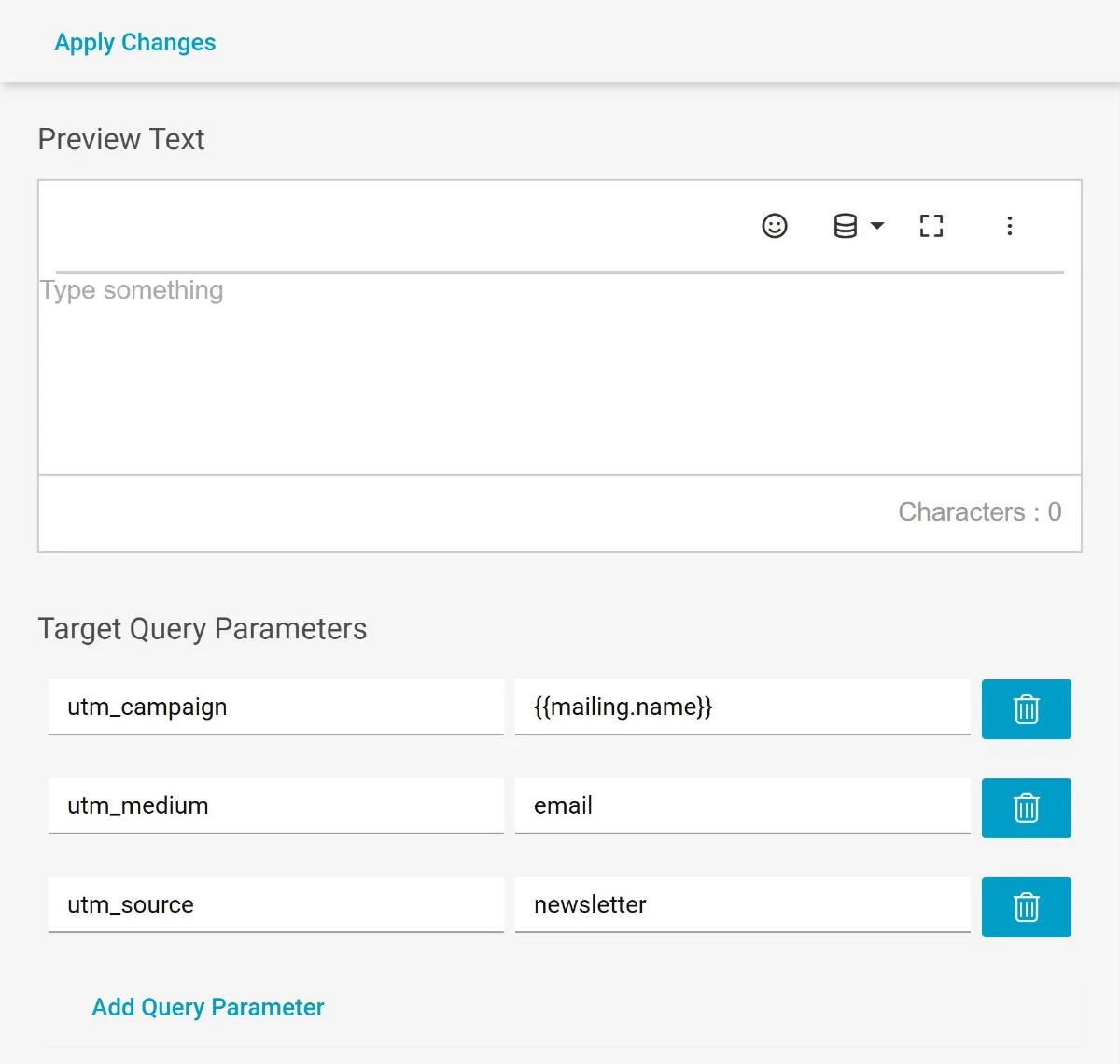
“Settings” tab with “Preview Text” and “Target Query Parameters”

Example of a preview text in MS Outlook
“Apply Changes” at the top of the tab applies the settings.
- Edit Design: Page → This is where the styles for the body, the body text and the links are predefined. The settings under “Body Style”, “Body Text” and “Link Style” apply to the entire template; different values for individual blocks are defined via their Style Attributes (see “Style Attributes”).
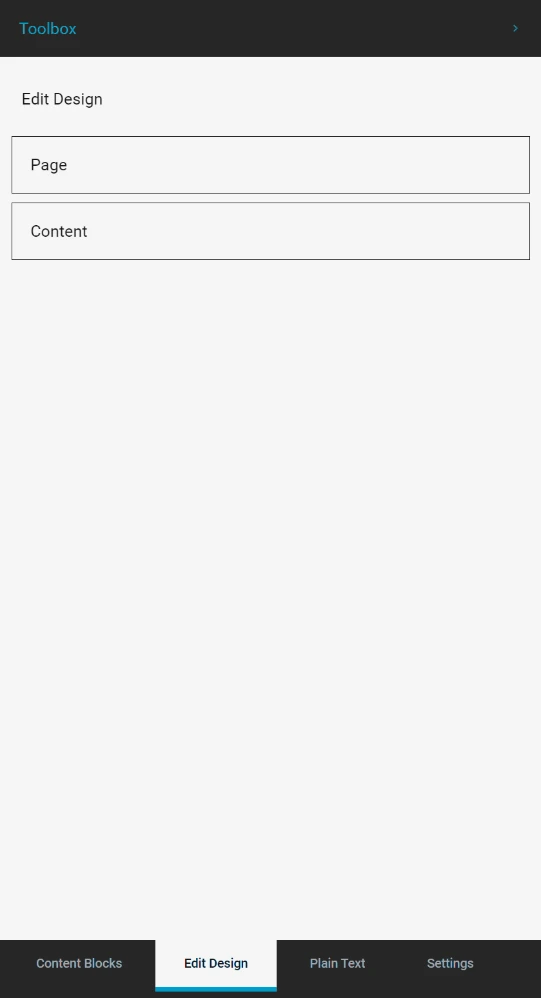
Edit Design – Page/Content jump points
Body Style (Layout Body)
- Background Color: The background colour of the template can be defined globally here by entering a value (hexadecimal, RGB or HSV (A)). Transparent: checkbox: when activated, the background is displayed transparent globally.
- Border2: Here you can set the thickness, style and colour of the border.
- None: No border is defined.
- Hidden: A hidden (invisible) border is defined.
- Dotted: A dotted border is defined.
- Dashed: A dashed border is defined.
- Solid: A solid border is defined.
- Double: A border with a double line is defined.
- Groove: A border with a central groove is defined.
- Ridge: A border with a ridge is defined.
- Padding: The inner spacing of the individual layout blocks. No padding can be assigned for the entire body.
- top: Defines the top spacing of the border. (default: 6 px)
- right: Defines the right spacing of the border. (default: 14 px)
- bottom: Defines the bottom spacing of the border. (default: 6 px)
- left: Defines the left spacing of the border. (default: 14 px)

Page - Body Style
Body Text
- Font Family: Defines the main font. The following fonts are available: Arial, Arial Black, Calibri, Comic Sans (MS), Courier New, Georgia, Helvetica, Impact, Lucida Sans, Palatino, Tahoma, Times New Roman, Trebuchet MS, Verdana
- Font Size: Defines the font size in pixels (abbr.: px). (max. 800 px)
- Line Height: This setting determines the height of the lines of text and thus the spacing between lines. Larger values create more space, smaller values a more compact display.
A value in pixels, for example 24 px, sets a fixed line height. A value without a unit, for example 1.5, describes a factor relative to the font size. With a font size of 16 px, the factor 1.5 results in a line height of 24 px. Double means double line height and corresponds to the factor 2.
- Text Align: Defines the horizontal alignment of a block element or a table cell frame. (right, left, centre, block)
- Padding: Defines the inner spacing in the text block. (max. 800 px). Using the plus icon (+) you can also set the spacing for top, right, bottom and left. Otherwise the set number of pixels applies to all sides.
- Background Color: Defines the background colour of the template. By default this field contains the value “transparent”, so no colour is defined. You can define a colour via the menu and still activate transparency using the checkbox. The defined colour is restored when you deactivate the checkbox.
- Border: Sets a border around the body. You can define the width in pixels, the border style and the colour.

Page - Body Text
Link Style
- Color: Defines the colour of the link.
- Text Decoration: Defines the text formatting for the link. The following formats are available: Underline, Overline, line through, Blink, None, Initial, Inherit (Inherit means that the setting of a parent container (if in doubt, the body) is used (inherited).)
- Font Weight: Defines the weight of the font. The following font weights are available: Normal, Bolder, Lighter, Number, Initial, Inherit
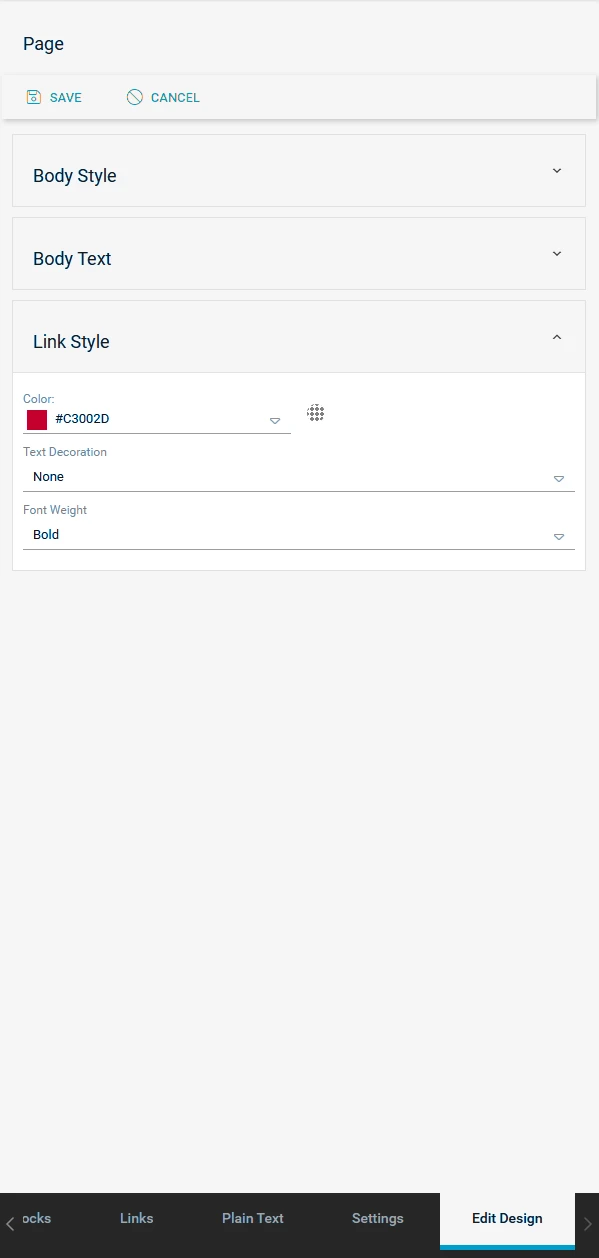
Page - Link Style
Some fonts are not available in all weights and only support the values “Normal” and “Bolder”.
- Edit Design: Content → This is where the styles for Button, Divider, Heading, Image, Social Share, Spacer, Text Block, Unsubscribe Block and the Widget are predefined.
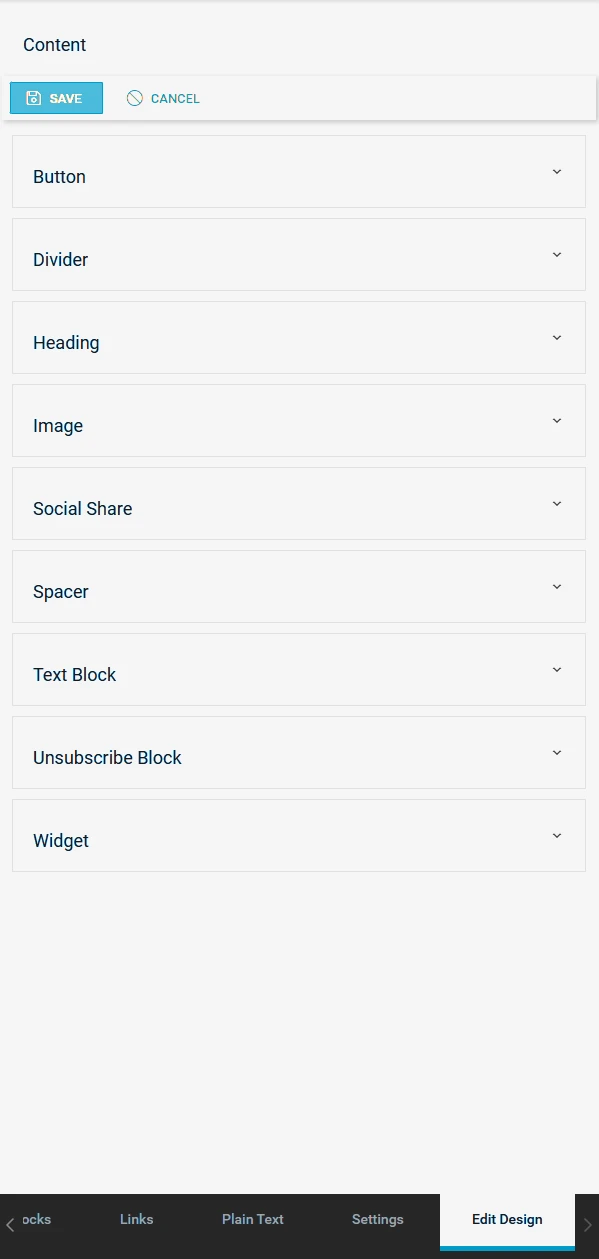
Edit Design - Content jump points
The settings made under “Edit Design” apply only to this template and have no global effect on other email templates.




