

 English
 Deutsch
English ✓
Campaigns › Emails › Overview › Create a new mailing
E-Mail Settings
The “Settings” tab contains the following fields for name, subject line and sender:
- E-Mail Campaign Name: Here you assign a name to the mailing. Make sure you follow a consistent naming structure (nomenclature) to keep things clear.
- Subject: Enter the subject line under “Default Subject”. “Add Subject” lets you add further subject lines with conditions.
In the MAS you can add alternative/individual subject lines to a mailing. If, for example, 3 subjects with conditions have been defined, the condition of the first subject below the default value is checked first. If it applies, the corresponding subject is used. If it does not apply, the check moves one level down. This continues until one of the conditions applies or there are no more conditions and the default value is used.
- Sender Information: Under “From”, enter the sender’s name and email address; under “Reply To”, the name and email address for replies. The email addresses are mandatory and must be valid.
- Additional Options: “Enable send time optimization” sends the mailing to each recipient at the time they are likely to open the email; this time is calculated per recipient. Sending is only postponed within the same day. If the best time has already passed when the mailing starts, the email is sent immediately. With “BCC Copy goes to”, the mailing can also be sent as a blind copy to an address (e.g. for testing purposes).

Form of a mailing with the “Settings” tab
In the “Design” tab, you choose the template for the mailing under “Template Selection” (“Choose an email-template for your e-mail campaign”). “New” creates a new template; the pencil icon edits the selected template. Below, “Template Preview” shows a preview of the template.
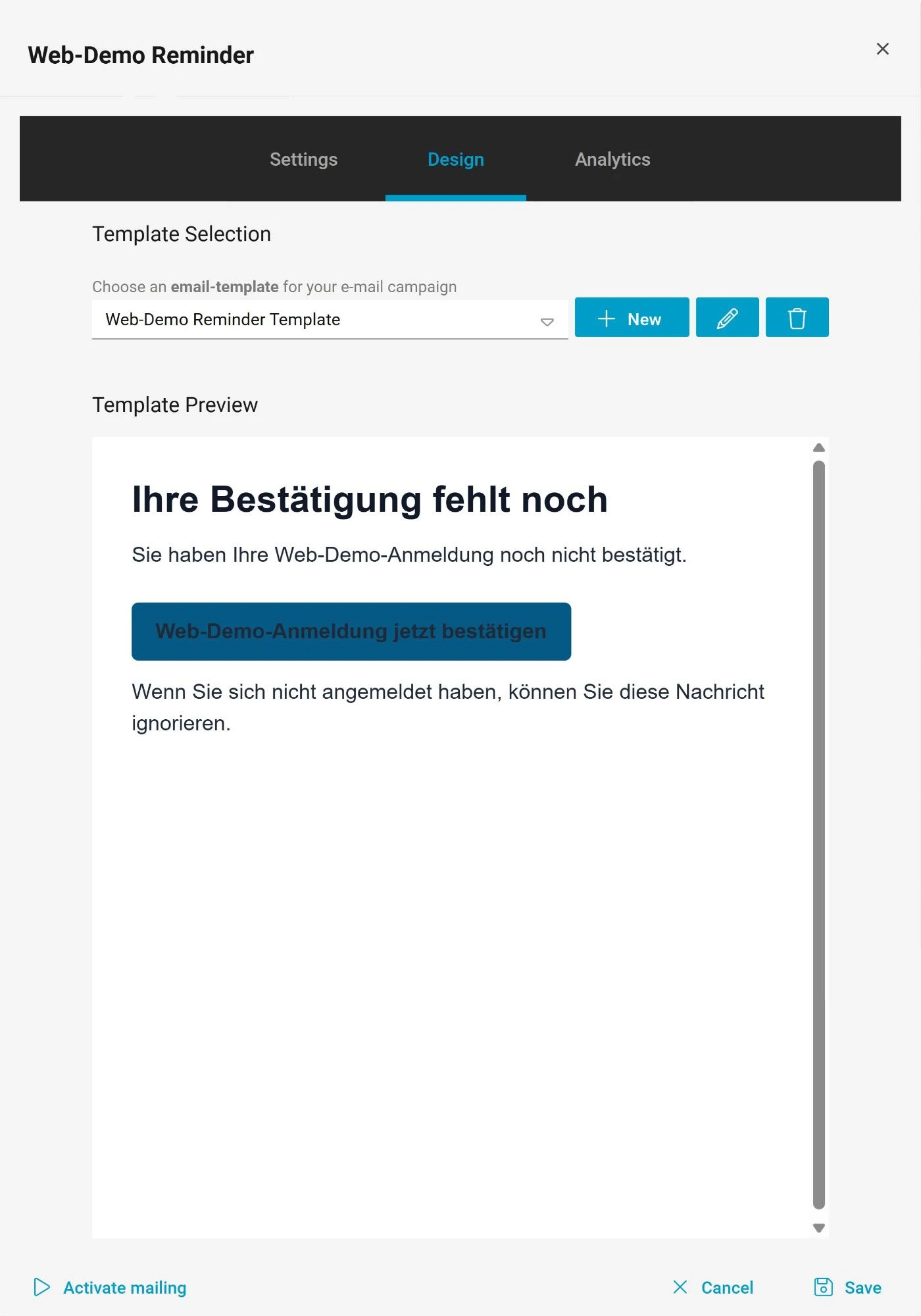
“Design” tab with template selection, “New”, pencil and bin icons and preview




