

 English
 Deutsch
English ✓
Start, structure and login/logout › Structure of the MAS
Navigation areas – overview
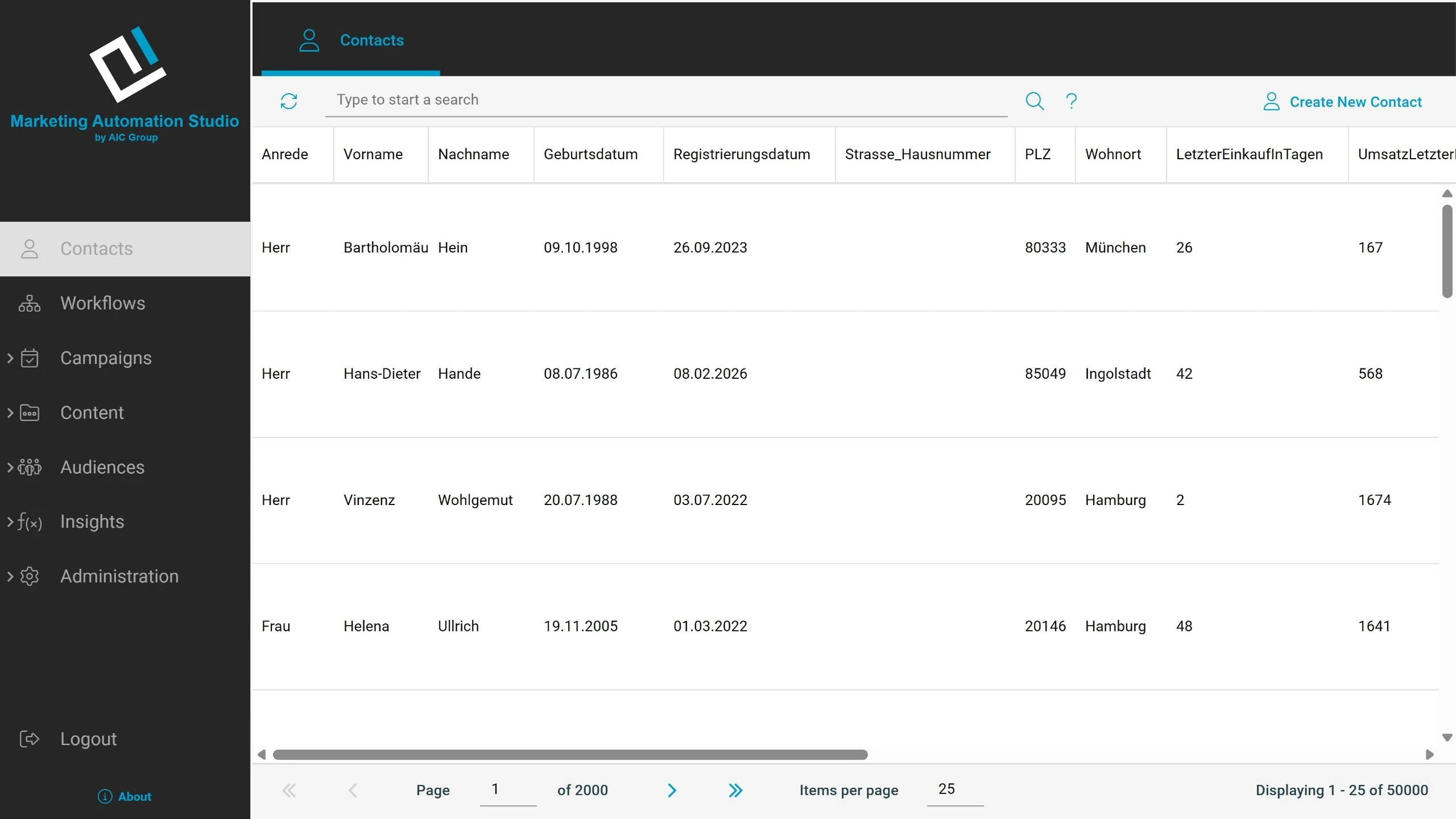
Navigation areas using Contacts as an example
See figure above:
- Left menu tree (MAS logo, main menu: Contacts, Workflows, Campaigns, Content, Audiences, Insights, Administration; at the bottom Logout and About). Menu items with an arrow expand further sub-items, e.g. Campaigns with Emails and Pushes.
- Header area (tab of the selected menu item, e.g. “Contacts”, below it the search field and buttons such as “Create New Contact”)
- Tabular overview and editing area (columns depending on the area, below them paging between pages, “Items per page” and the number of entries)
The columns in the overview and editing area can be customised. To do this, move the mouse over the column heading so that a down-arrow icon appears. Clicking it displays a selection of further columns, which you can show via checkbox.

Selection list of further overview columns

Navigation area – Assets example
See figure above:
- Header area (“Assets” tab, search field, “List” and “Gallery” buttons, “Search free images” and “Upload Image”)
- Tabular overview and editing area (thumbnail, name, date, dimensions, file type and size, icons for editing and deleting)
- Footer area (paging between pages, “Items per page”, number of entries and update button)
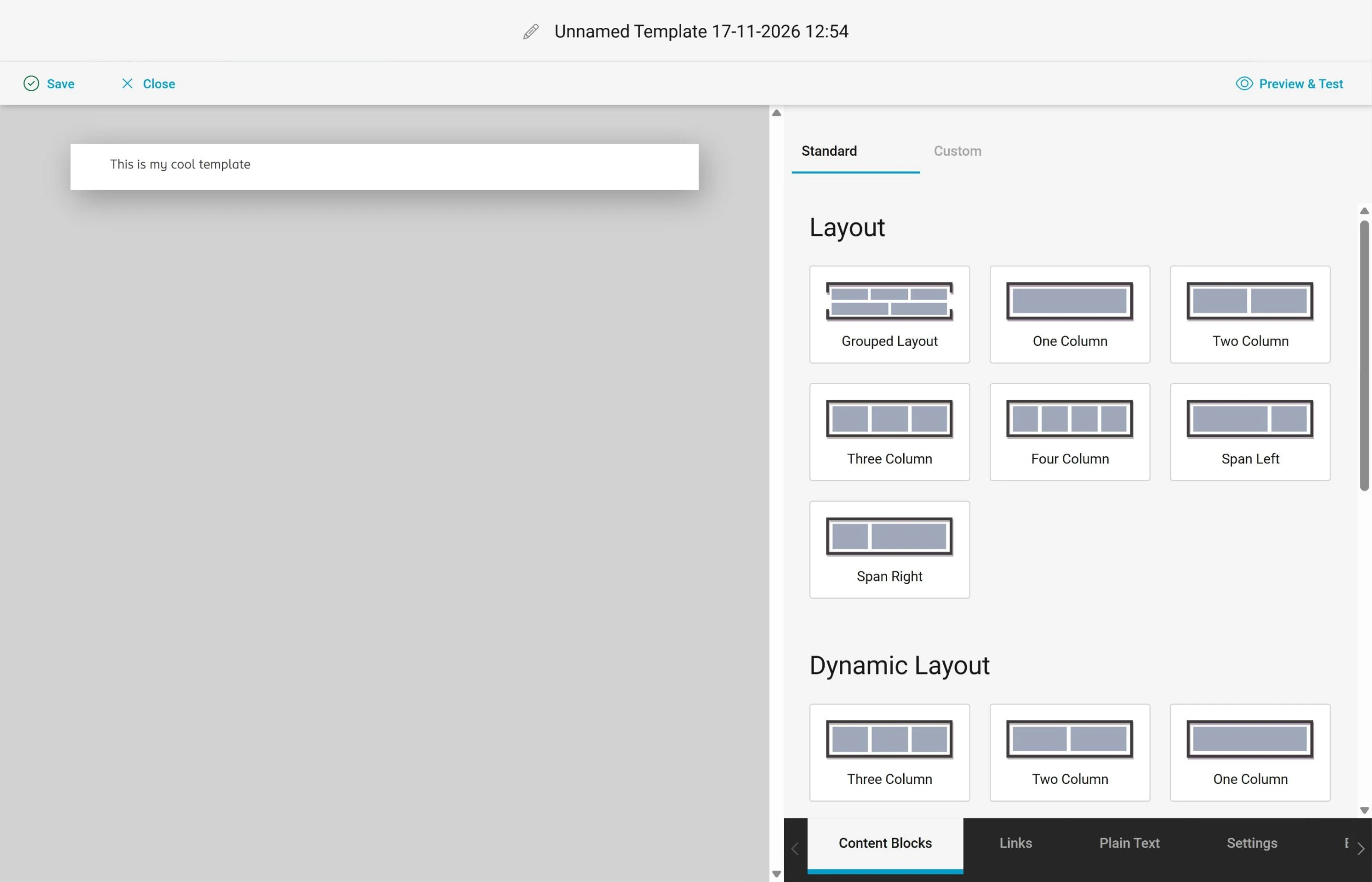
Navigation area – template editor
See figure above:
- Header: name of the template (can be changed via the pencil icon)
- Bar below: “Save”, “Close” and on the right “Preview & Test”
- Work area on the left: structure of the template with blocks, layout and conditions
- Building blocks on the right: “Standard” and “Custom” tabs with Layout, Dynamic Layout and Content
- Tabs at the bottom right: “Content Blocks”, “Links”, “Plain Text”, “Settings” and “Edit Design”

Navigation area – preview and test (“Preview & Test”)
See figure above:
- Left area: “View Selection”, “Size” and “Loading time”
- Header: “Desktop Preview for …” with the name of the template and × to close
- Preview area (desktop, mobile, email clients)
- Expandable at the bottom: “Test Recipients” with the test recipients and their attributes
Main area – start area
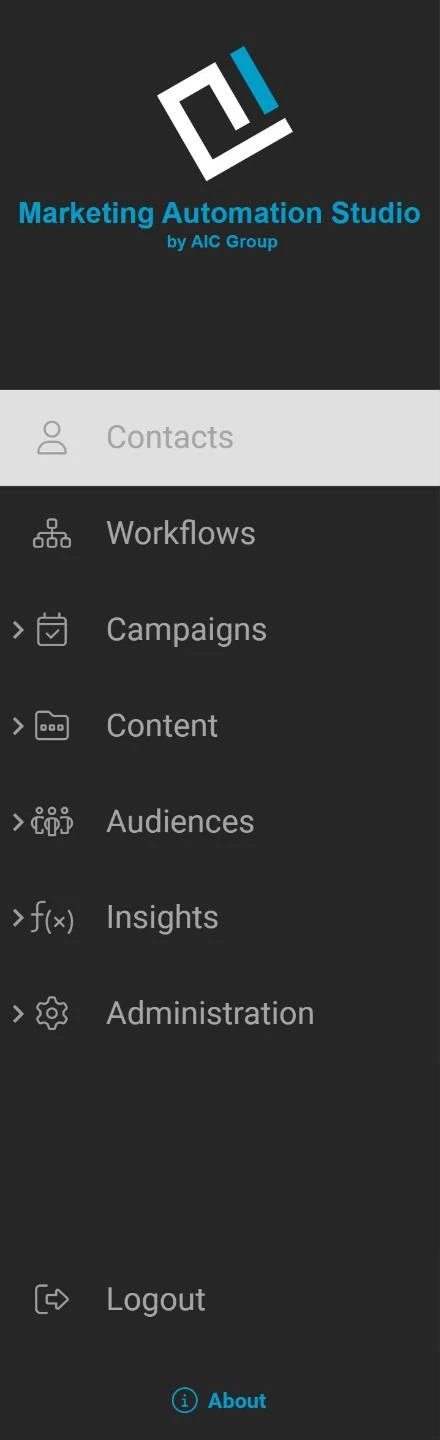
Menu tree with MAS logo

Upper header area
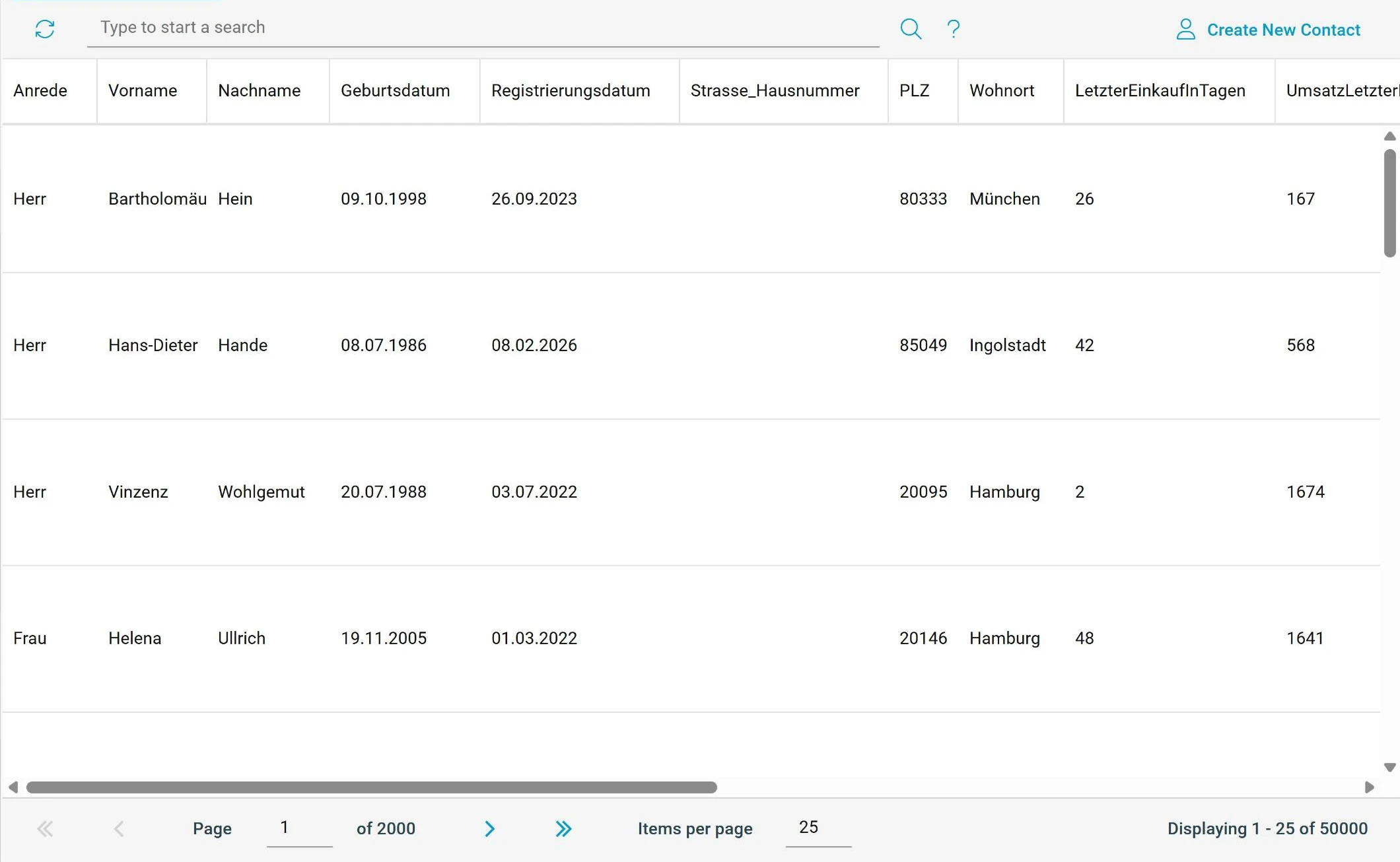
Tabular overview and editing area
- Left menu tree plus logo
- Upper header area with tabs, search bar and menu items
- Central overview and editing area




