

 English
 Deutsch
English ✓
Content › Assets › View
Gallery view
Use the “List” and “Gallery” buttons at the top of the toolbar to switch between the list view and the gallery view. In the gallery view, the images are displayed as large thumbnails without further details.

“List” and “Gallery” buttons as well as “Search free images” and “Upload Image”
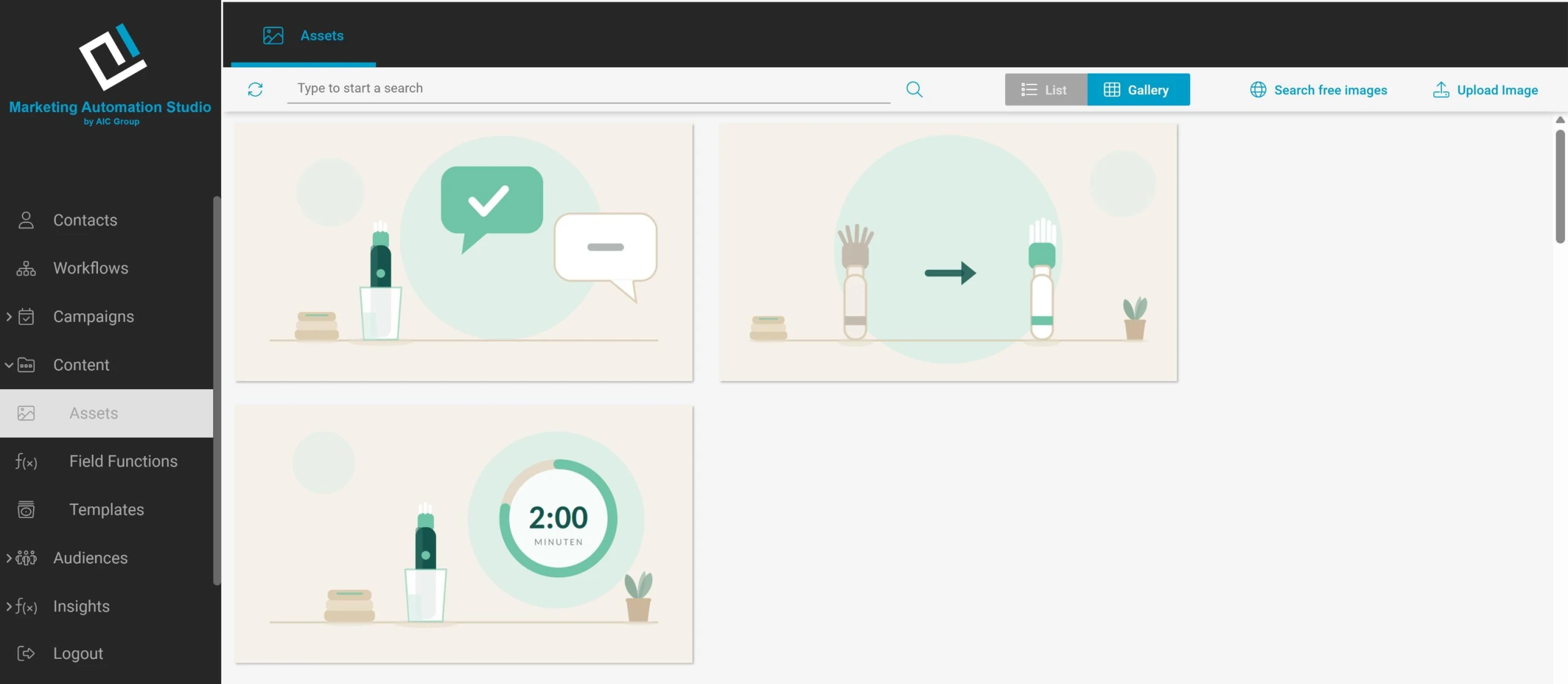
Gallery view
When you move the mouse pointer over an image (mouseover effect, also called hover effect), the name of the image, information on the last edit (“Last Edited”) and the “Select” button appear.
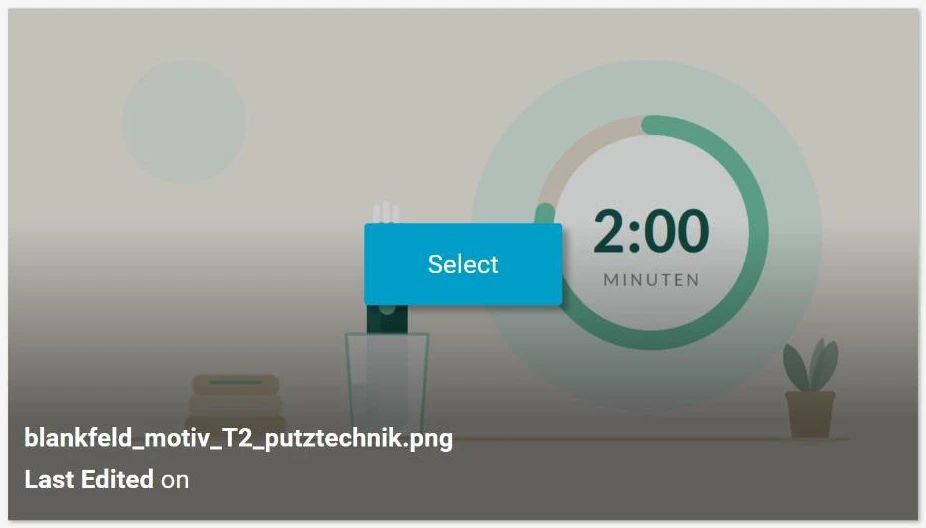
Mouseover effect of a gallery image
Click “Select” in the middle of the image to open the detail view of the image. It displays the following information:
Asset Details
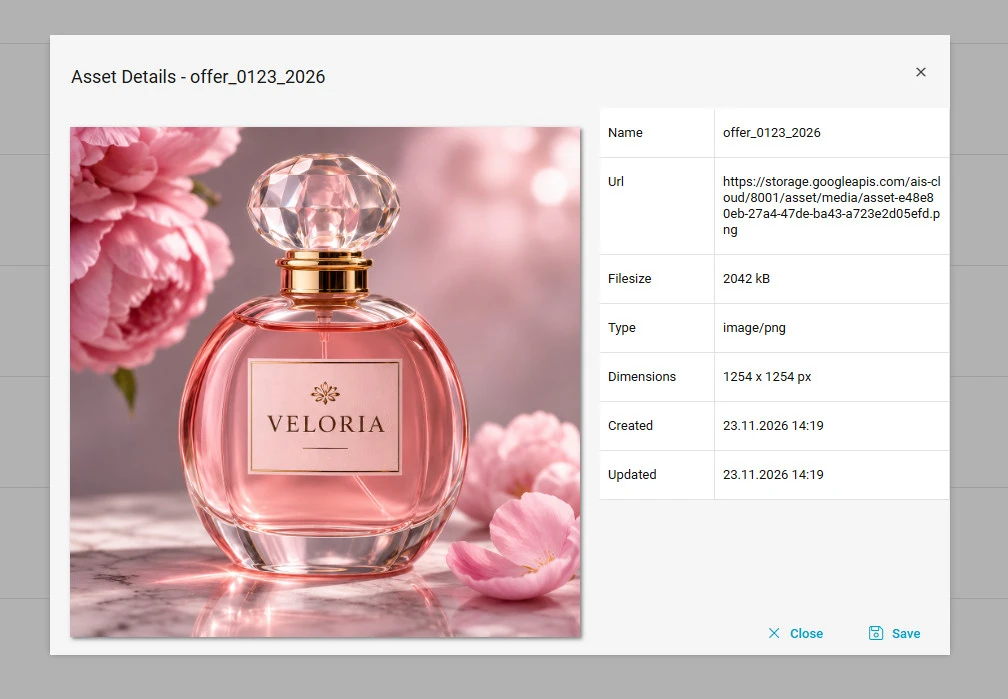
Asset Details – example
In the detail view, you can change the name of the image. To do this, click in the name field and make the change. Then confirm the change by clicking “SAVE”. If nothing is to be changed, simply click “CLOSE”.




