

 English
 Deutsch
English ✓
Content › Templates › Create Template › Create an initial template › Block: Content
Content-Block: Image Collection
“Image Collection” button
This content block lets you position several images within one layout block.
The content block can be used for any layout. Drag the content block into the relevant layout field in the usual way.
Clicking the image placeholder opens the editing menu on the left.
There you can define the number of images using the “+ Add New Item” button.
The image itself can be inserted via image URL or from the assets. You can optionally add a link to this image.
You can also change the size of the image in the “Item Width (px)” field.
The “Style Attributes” and the setting in “Item” are used in the same way as in the “Image” block (see “Content-Block: Image”). In addition, you can change the vertical position of the image in the “Vertical-Align” field. Note that the position of the largest image does not change; only the smaller images are displayed at the selected position (Middle/Top/Bottom).
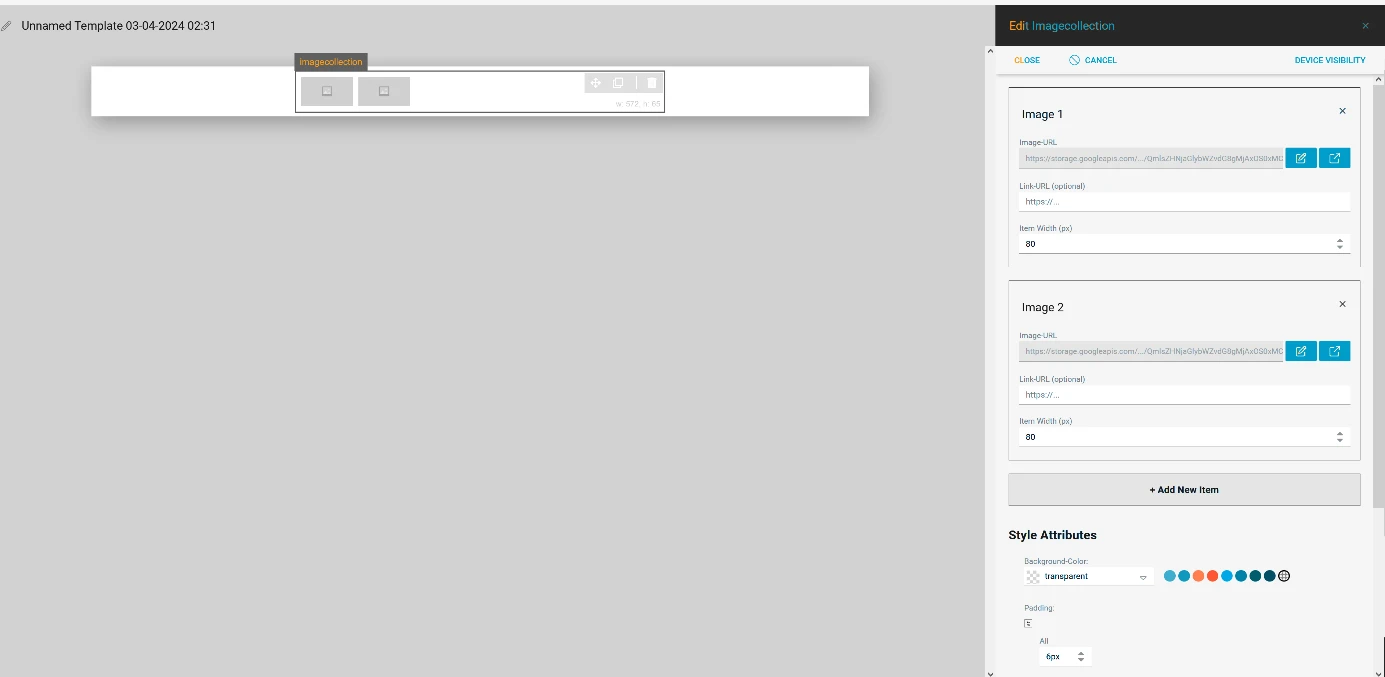
Image Collection
Do not insert too many images within one layout block, otherwise it exceeds the border (see Figure “Border exceeded in the ‘Image Collection’ block”).

Border exceeded in the “Image Collection” block




