

 English
 Deutsch
English ✓
Contacts
Create New Contact
To create a new customer contact, click the “Create New Contact” button at the top right. The “New Contact” input screen then appears.

“Create New Contact” button
The screen is divided into the sections “Base Profile Information”, “Extended Profile Information” and “Address Information”. Which fields appear there depends on the customer schema of the project.
Make sure that the “E-Mail” field is always filled in correctly. This means that the contact record cannot be saved without an email address. In addition, the email address must have the correct format (name @ second-level domain . top-level domain – e.g. max@mustermann.de). A note is shown as a mouseover with a red exclamation mark.
On the right-hand side are the “Actions”, “Activities” and “Insights” tabs. They can only be used once the contact has been saved. This is indicated by the note “Save the contact first to manage actions below.”. “Save” at the bottom right saves the contact, “Close” closes the screen.
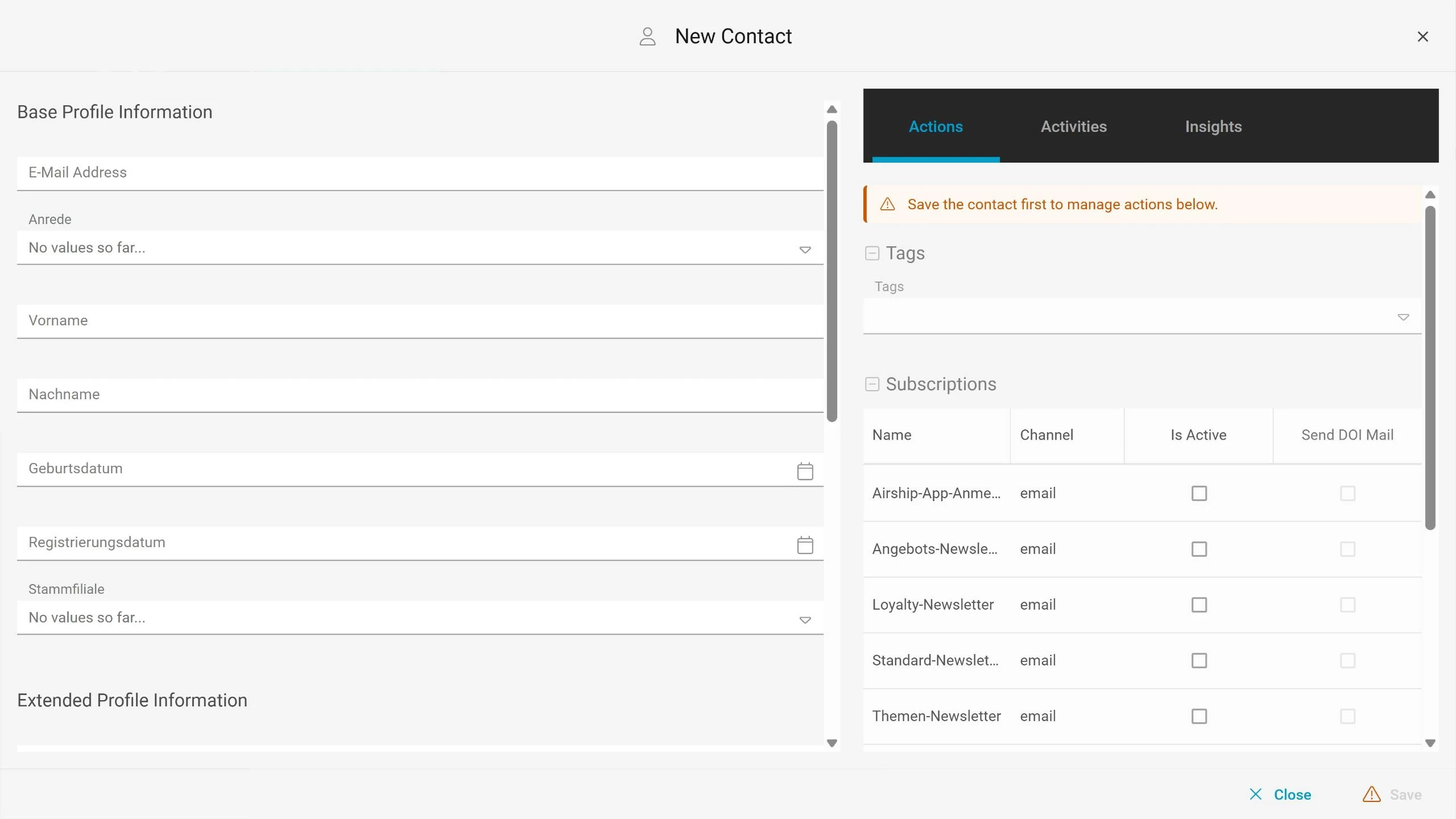
“New Contact” input screen




