

 English
 Deutsch
English ✓
MAS - Workflows
Workflows
Workflows let you build automated processes: a trigger enrols contacts in the workflow, after which they pass through steps such as waiting times, decisions and the sending of emails.
Under “Workflows” in the left-hand menu, all workflows you have created are listed with these columns:
- Status: icon for the state – draft, active or finished; hovering over it shows the label.
- Name: name of the workflow.
- Icons at the end of the row: Edit, Copy and Delete.
Use the search field to search for workflows. You create new workflows with “Create Workflow” at the top right.
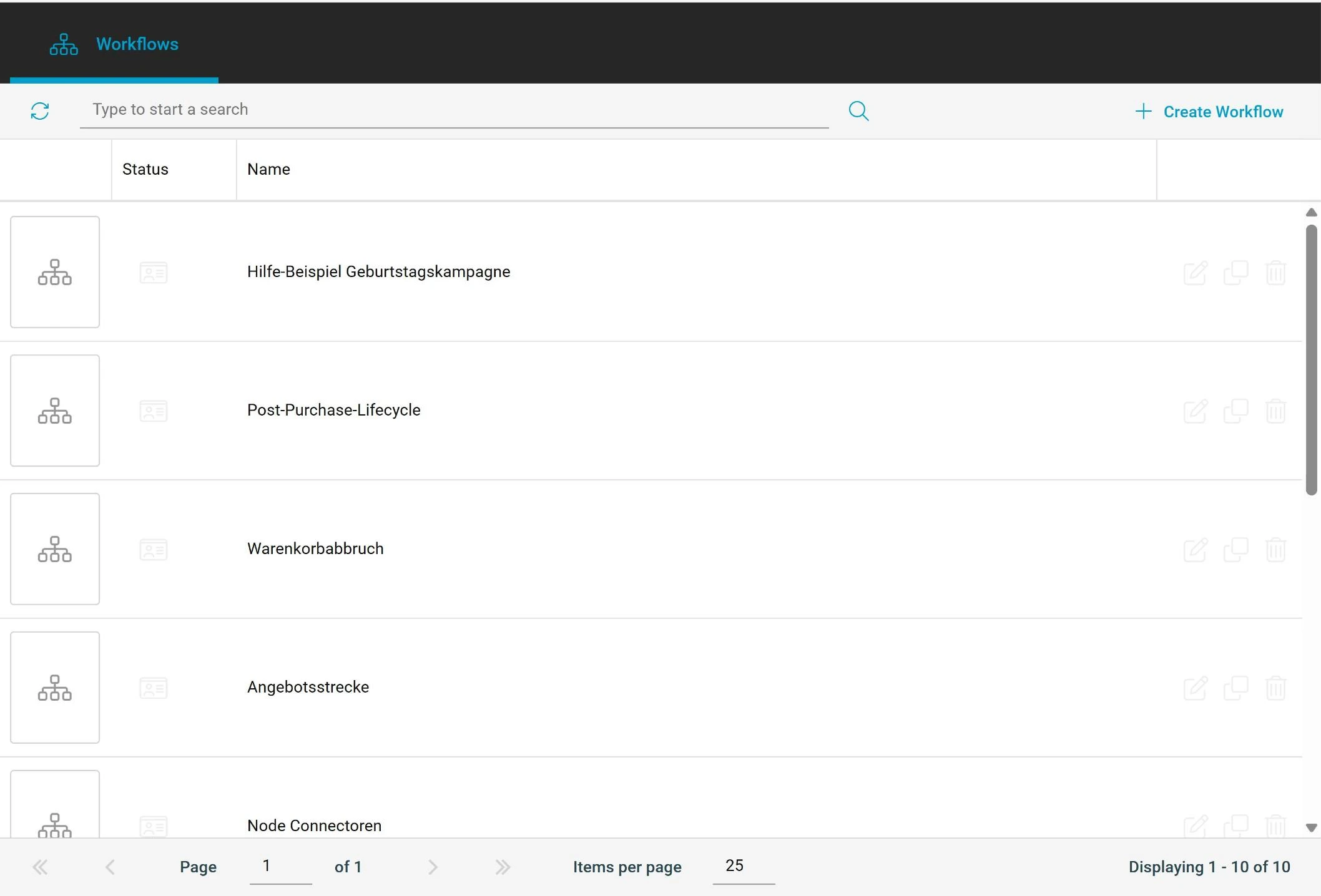
Overview of the workflows
Creating a workflow
To create a new workflow:
- In the overview, click “Create Workflow” at the top right. The workflow editor opens with the name “New Workflow”.
- Use the pencil icon next to the name to enter a meaningful name, e.g. “birthday workflow”.
- Click the “Virtual Trigger” placeholder (“specify trigger type”) and select the trigger (see “Workflow editor and triggers”).
- Use the plus icons below the trigger to insert further building blocks (see “Building blocks: Actions and Flow-controls”). The chequered flag marks the end of the flow.
- Save with “Save” at the top left. The workflow is initially switched off (OFF); the red number on the switch shows how many issues are still open.
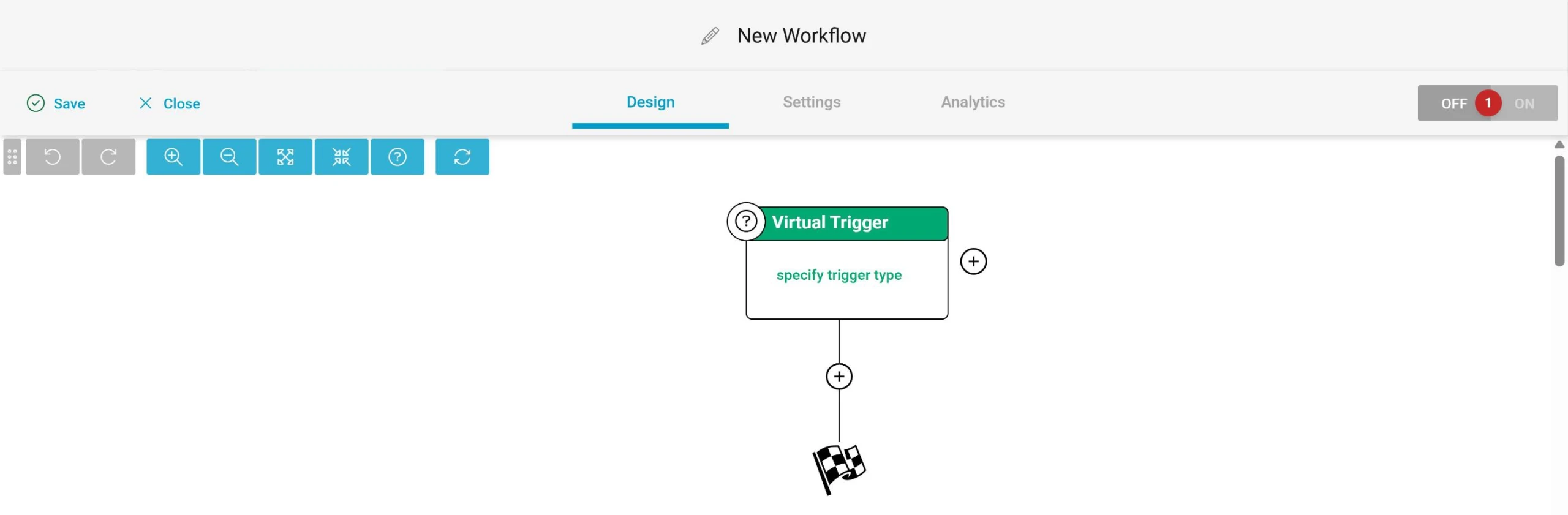
New workflow in the editor: name “New Workflow”, “Virtual Trigger” placeholder and chequered flag
A new workflow is only saved when you click “Save”. If you close the editor with “Close” beforehand, the workflow does not appear in the overview.
Topics in this chapter
Workflow editor and triggers
Structure of the editor, keyboard shortcuts and the four triggers.
Building blocks: Actions and Flow-controls
Email, webhook, tags, waiting times and decisions.
Settings, Analytics and activation
Global settings, evaluation and activation.
Example: birthday workflow
Step by step: a birthday email in two variants.
Frequently asked questions
Which triggers can a workflow start with?
You can choose from “Incoming Event”, “Manual Enrollment”, “System Event” and “Scheduled Audience”. To select the trigger, click the “Virtual Trigger” placeholder in the new workflow. Read more ›
How do I add a waiting time between two emails?
Insert a “Waiter” between the two Email nodes. There you select “Time Delay” for a fixed duration, “Scheduled Delay” for a specific date or “Channel Event” to wait for an event. Read more ›
Why is my new workflow not running?
A new workflow is initially switched off and must be activated with the OFF/ON switch (“Activate workflow”). A number on the switch shows how many issues are still open, e.g. a trigger without a type. Read more ›
What happens to contacts to which no rule in the Decision Split applies?
These contacts go into the “Default branch”. For all other branches (“Match Case”), you define a name and rules for each. Read more ›
What do the Achievements Gold, Silver and Bronze mean?
They allow the creator of the workflow to define goal levels, e.g. Gold = purchase, Silver = enquiry, Bronze = click, and to assign end nodes to them. They are not automatically calculated success ratings. Read more ›




