

 English
 Deutsch
English ✓
Workflows
Workflow editor and triggers
The workflow editor is structured as follows:
- Top: name of the workflow (can be changed via the pencil icon), “Save” and “Close”, the “Design”, “Settings” and “Analytics” tabs and, on the right, the OFF/ON switch (“Activate workflow”).
- Toolbar at the top left: undo, redo, zoom in, zoom out, fit to screen, keyboard shortcuts (question mark icon) and reload.
- Canvas (“Design” tab): the flow is shown as a chain of nodes from top to bottom. Use the plus icons between the nodes to insert further nodes.
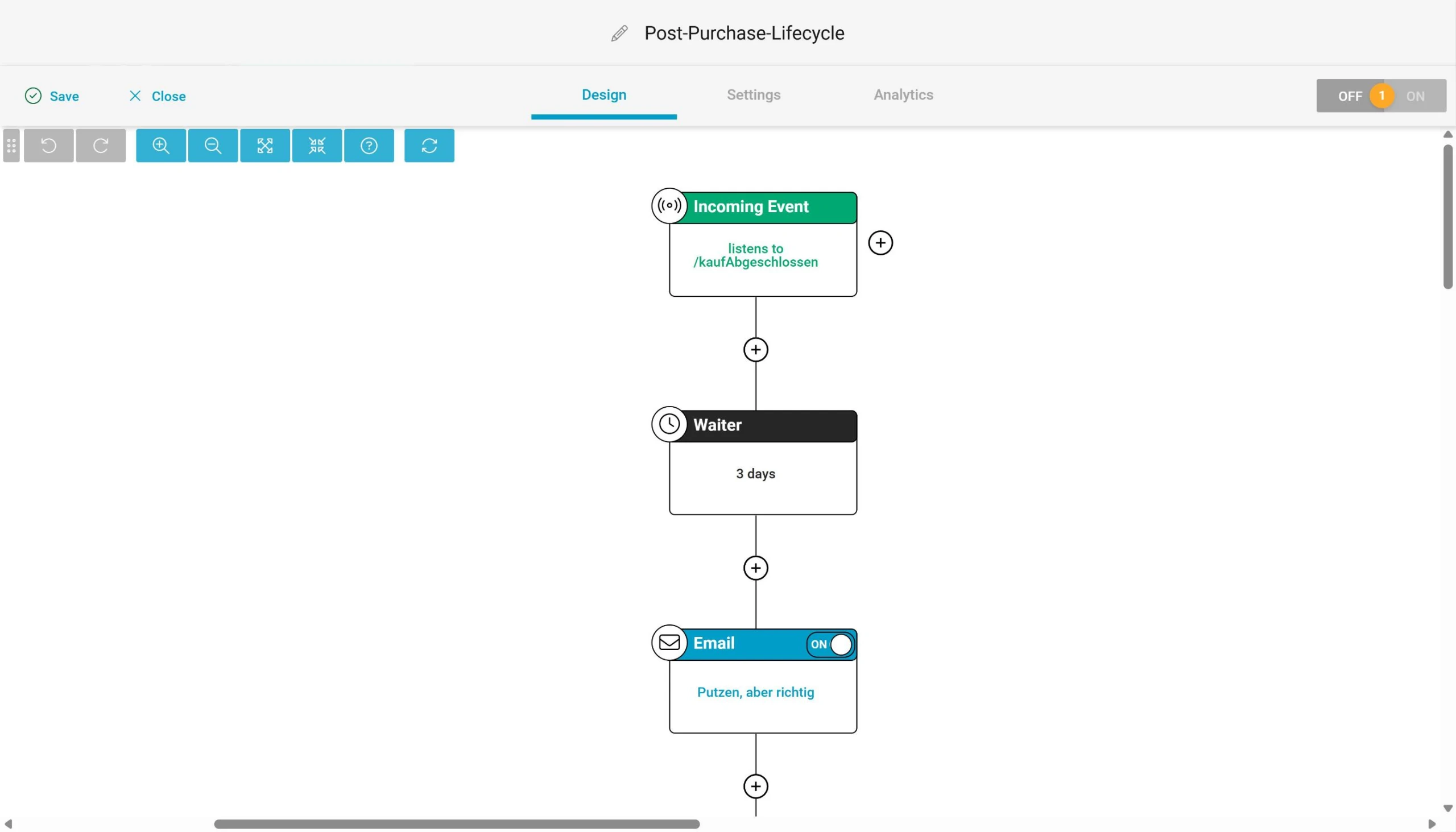
Workflow editor with the example workflow “Post-Purchase-Lifecycle”
The following keyboard shortcuts apply in the editor:
- Alt: switch move mode on and off. In move mode, dragging the background moves the canvas and dragging a node moves the node.
- Shift + click: select several nodes.
- Shift + drag: select nodes with a selection frame (lasso).
Triggers
Every workflow starts with a trigger. The plus icon next to the trigger node opens the “Flow Objects” selection with these triggers:
- Incoming Event: responds to incoming external requests, e.g. “/kaufAbgeschlossen”.
- Manual Enrollment: contacts are added to the workflow manually.
- System Event: responds to events generated by the MAS itself (see “Trigger/Events”).
- Scheduled Audience: enrols all contacts of the specified target group.
A new workflow starts with the “Virtual Trigger” placeholder (“specify trigger type”). Clicking it opens the trigger selection; the selected trigger replaces the placeholder. The plus icon next to a trigger adds another trigger in parallel.
The “Scheduled Audience” trigger has its own form. Under “Audience”, you select the subscription and the target group; the number of contacts that can be reached is shown on the right (“Your audience may reach”). Under “Schedule”, “By defined schedule” is preset: “Frequency” (Daily, Weekly or Monthly), “First Execution” and, below it, the list of dates. The next date is shown on the right (“Next execution on”).
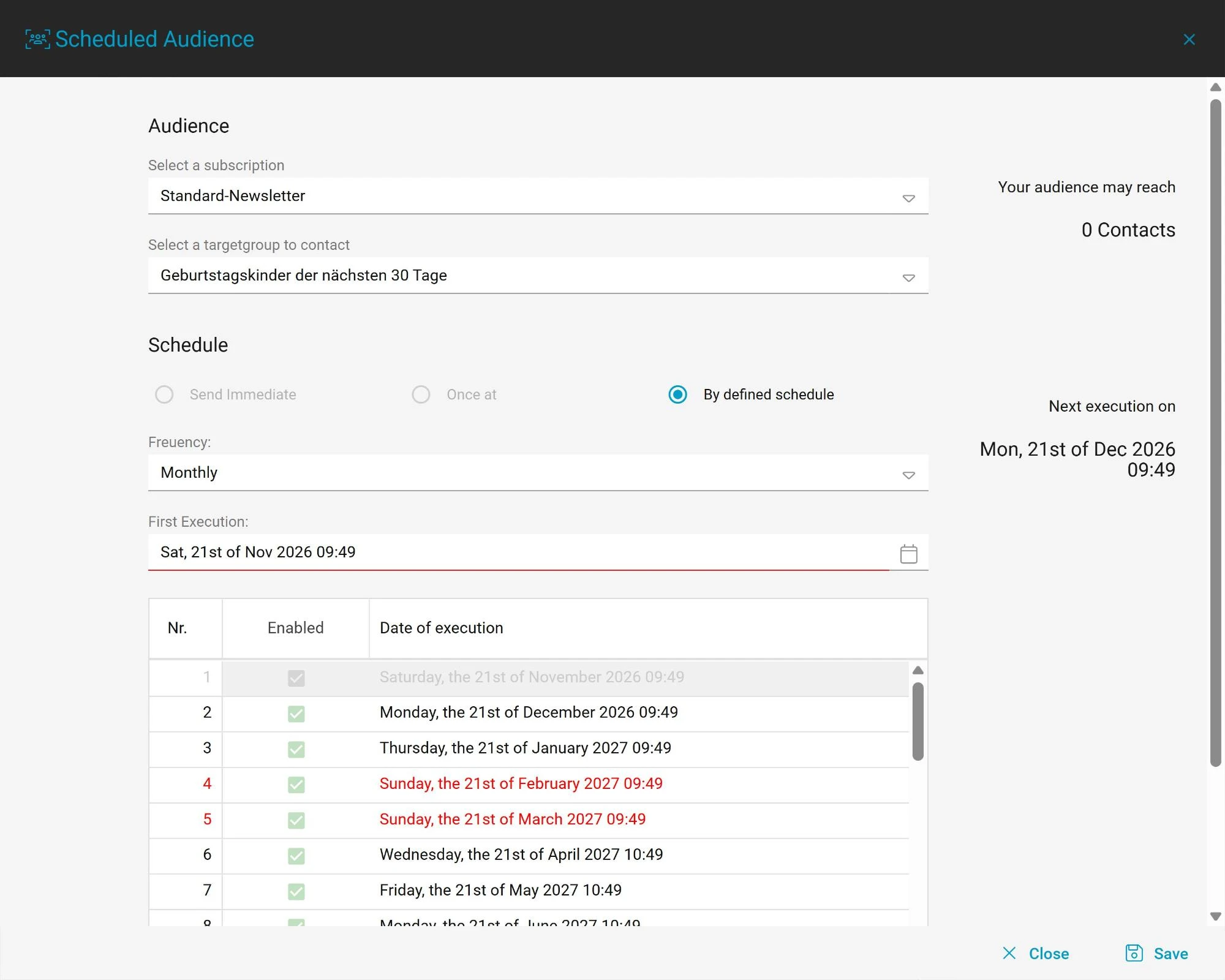
Form of the “Scheduled Audience” trigger




