

 English
 Deutsch
English ✓
Content › Templates › Create Template › Preview and test the created mailing
View Selection
The three icons under “View Selection” let you switch between the views of the mailing.
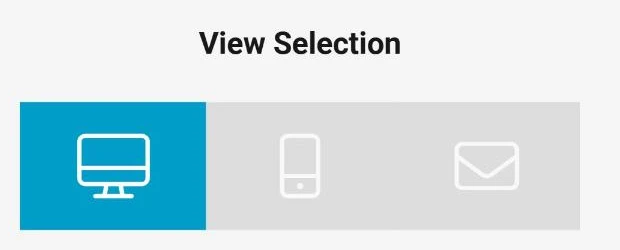
View Selection with the icons for desktop, mobile and email clients
The following views are available:
- Desktop: The mailing is displayed as it would look on a computer monitor.
- Mobile view (Mobile): The view of the mailing is initially simulated on a smartphone. However, you can also select a tablet as the view. To do this, select a device in the selection list under “Custom Device”. The width and height (Width & Height) can also be set individually. You can also create devices yourself by clicking “Add New Device” and entering the specifications of the device there. Make sure you enter the correct name or model designation. This name then appears in the selection box. The “Rotation: Portrait” button changes the view from vertical to horizontal.
- Clients: This function displays the mailing in various clients (which you can select via the “SELECT CLIENTS” button) in different environments. To do this, click the “RUN A NEW TEST” button. A test procedure with the created email is then started. Screenshots of the individual instances are created, which you can view to find possible errors (on the “Email Test Summary” tab). Various clients in various environments are checked. You can also cancel the test with the “CANCEL TEST” button. In addition, all links contained in the mailing are checked for reachability (on the “Link Analysis” tab). They are shown in a table, where faulty links are marked in red so that you can find them quickly.

Preview of a template on a smartphone
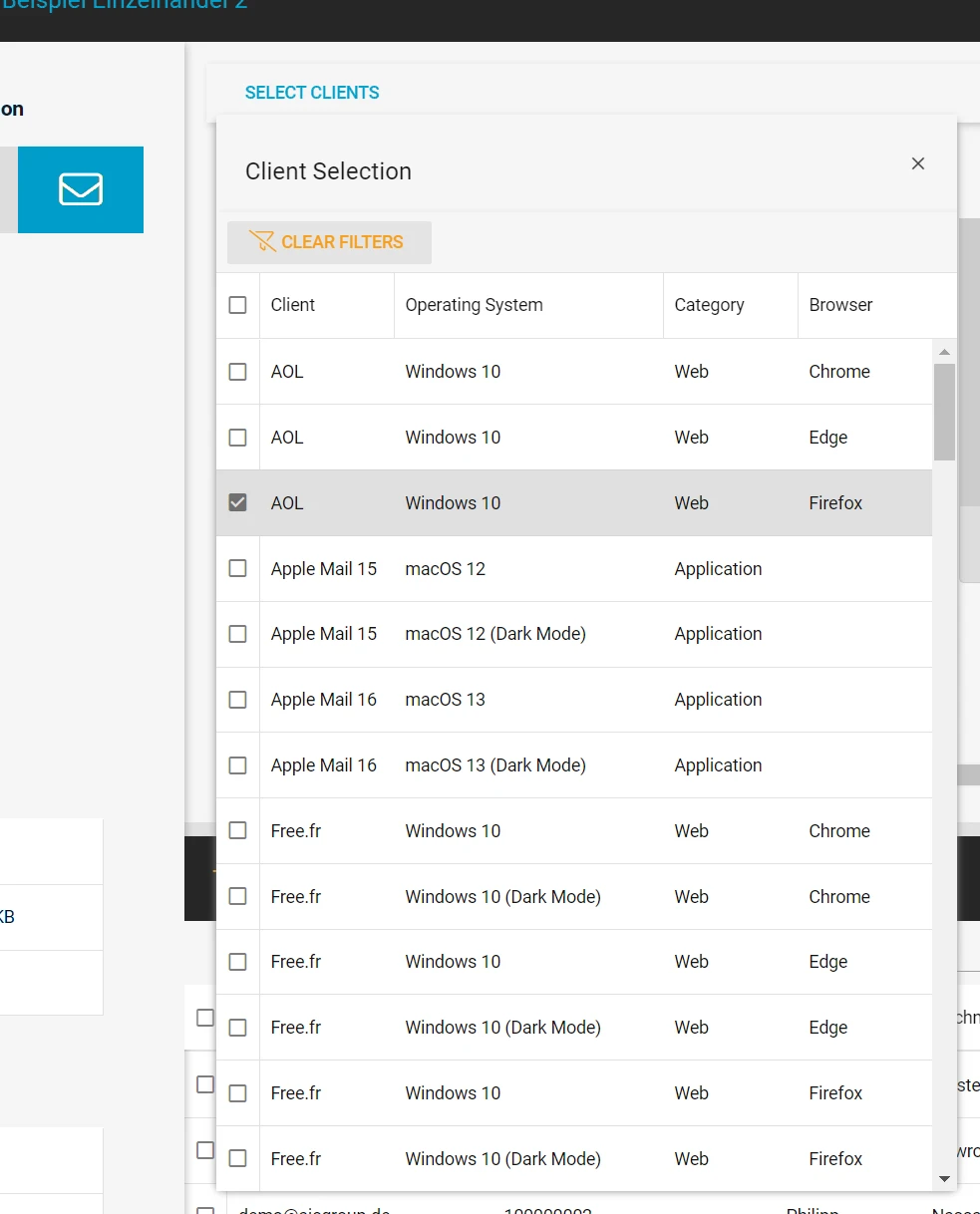
Selecting the clients

Button for starting the client and link analysis test

Test in progress
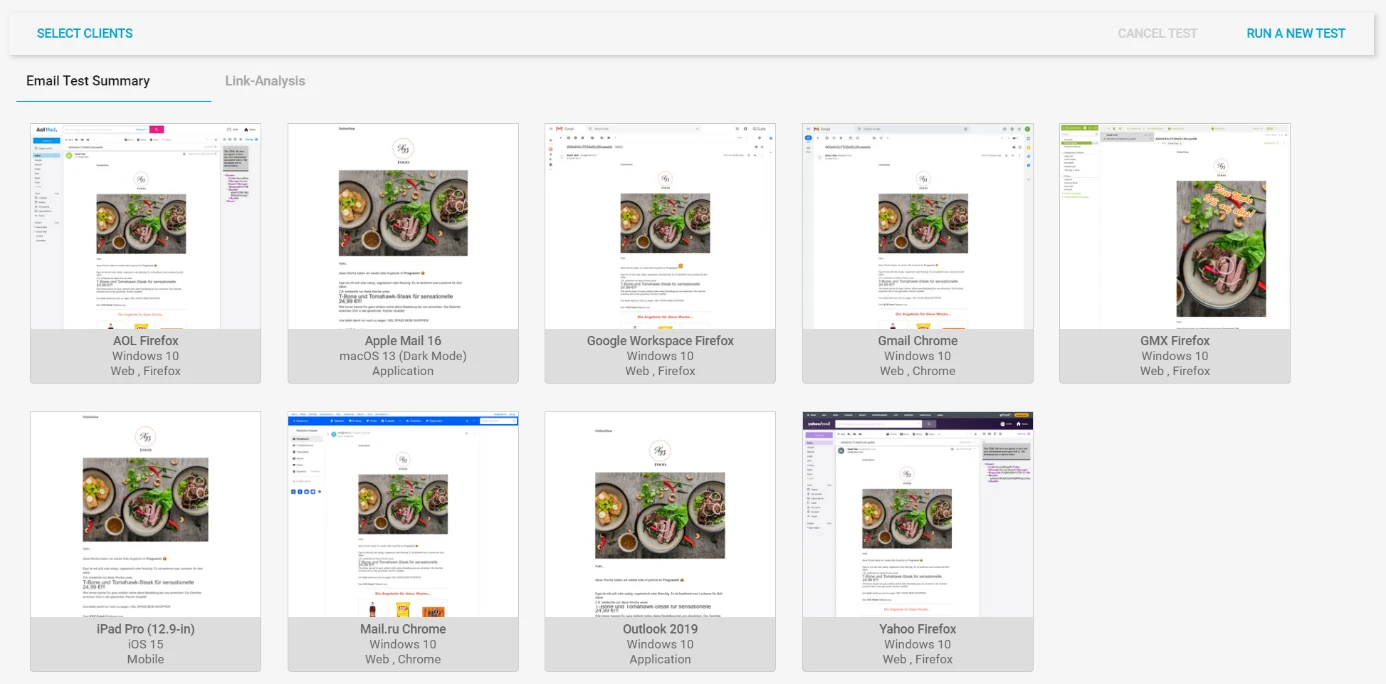
Overview of the overall test result
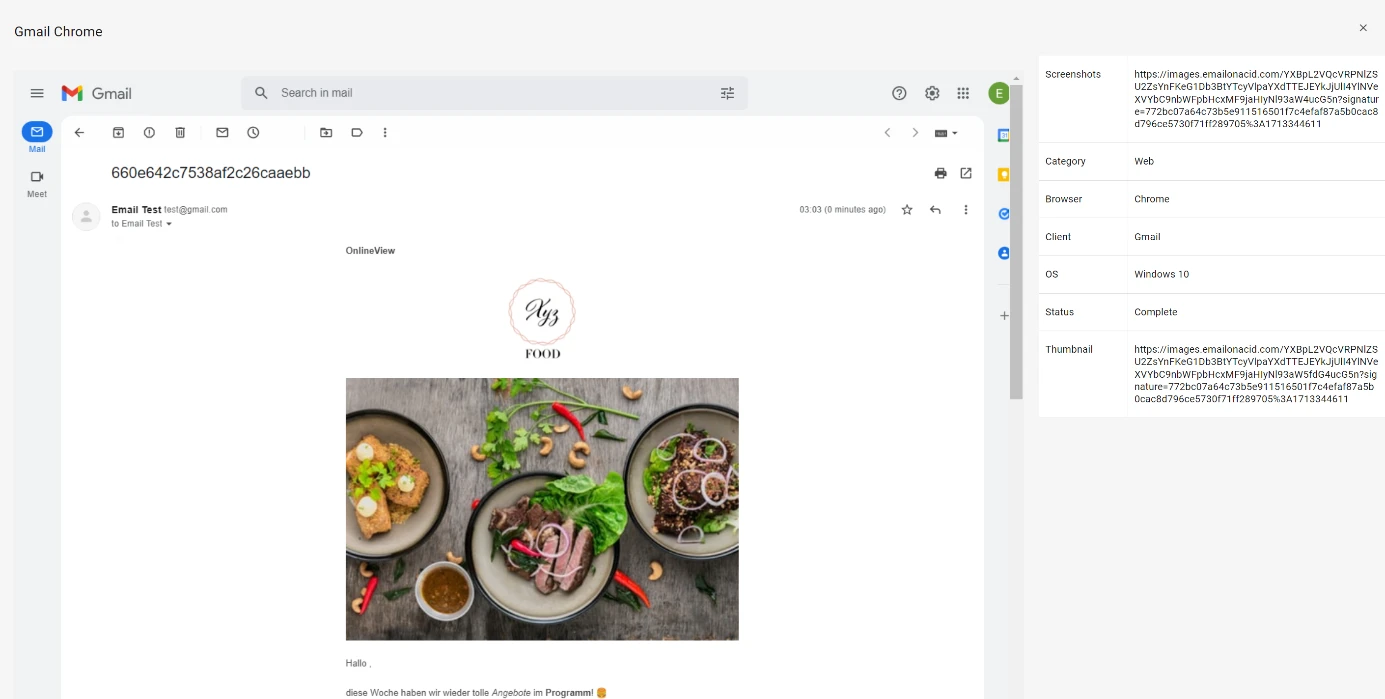
Detail view of a test
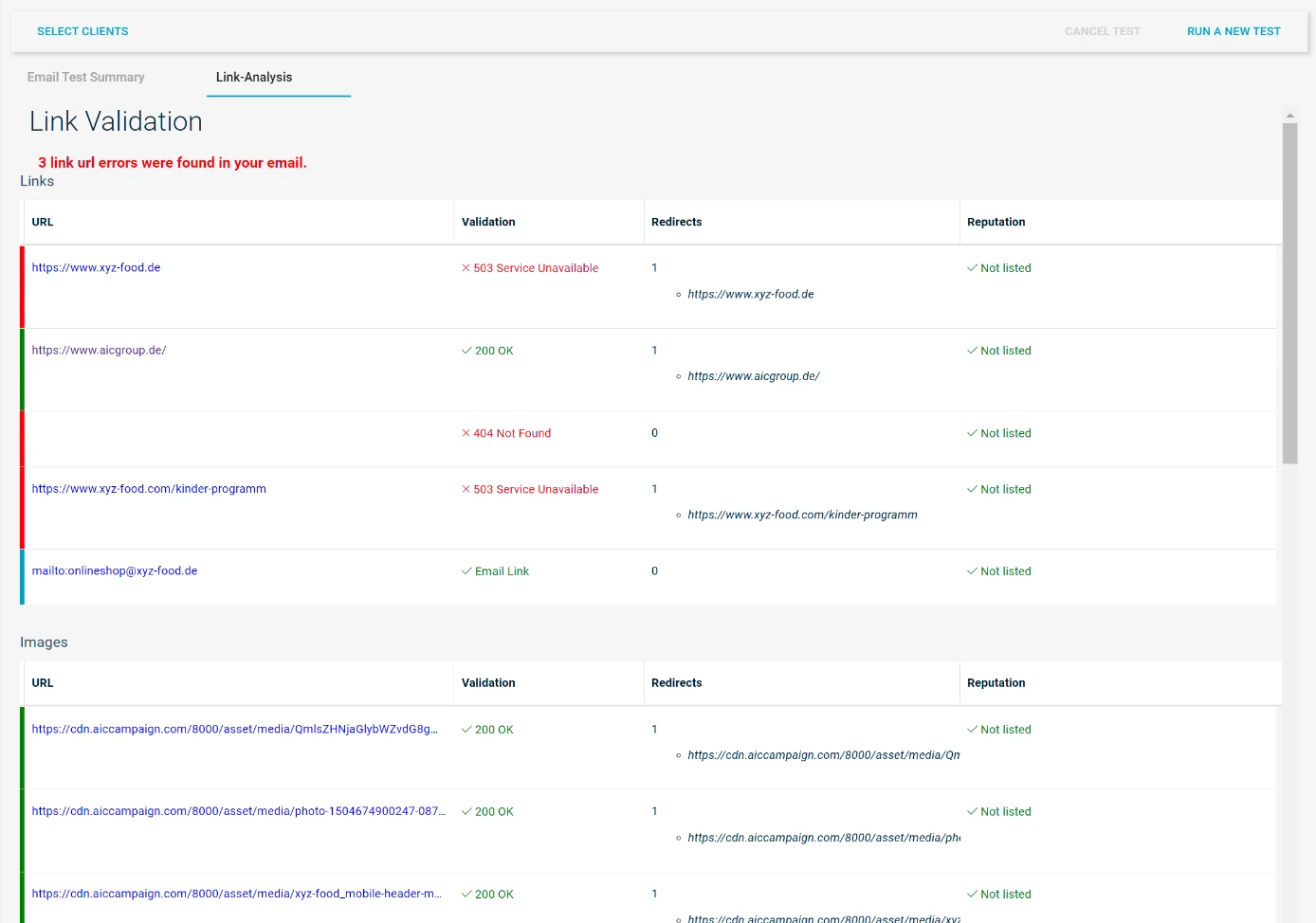
Link Validation of a template

Display of possible linked stylesheets
Information
The term “Linked Stylesheets”: the design is included via a separate file. This file defines, for example, fonts, colours and spacing.
Name
Explanation
Function
Example
URL
Abbr.: Uniform Resource Locator / colloquially: “internet address” or “web address”
Address for reaching web pages or files.
https://www.xyz-food.de
Validation
i.e. validity check /
Check for accuracy, missing values, anomalies and discrepancies in the data.
✕
503 Service Unavailable
✓
200 OK
Redirects
i.e. forwarding
A URL is forwarded to another URL.
https://www.xyz-food.de/home/aktuelle-angebote-kw-32.htm
Reputation
Lat.: regard
Assessment of whether a link or a website is to be classed as trustworthy or dubious.
✓
Not listed
Overview of the various test parameters of the Link Validation
Caution
The client tests incur additional costs and should therefore only be run sparingly!




