

 English
 Deutsch
English ✓
Content › Templates › Create Template › Create an initial template
Structure of the editor
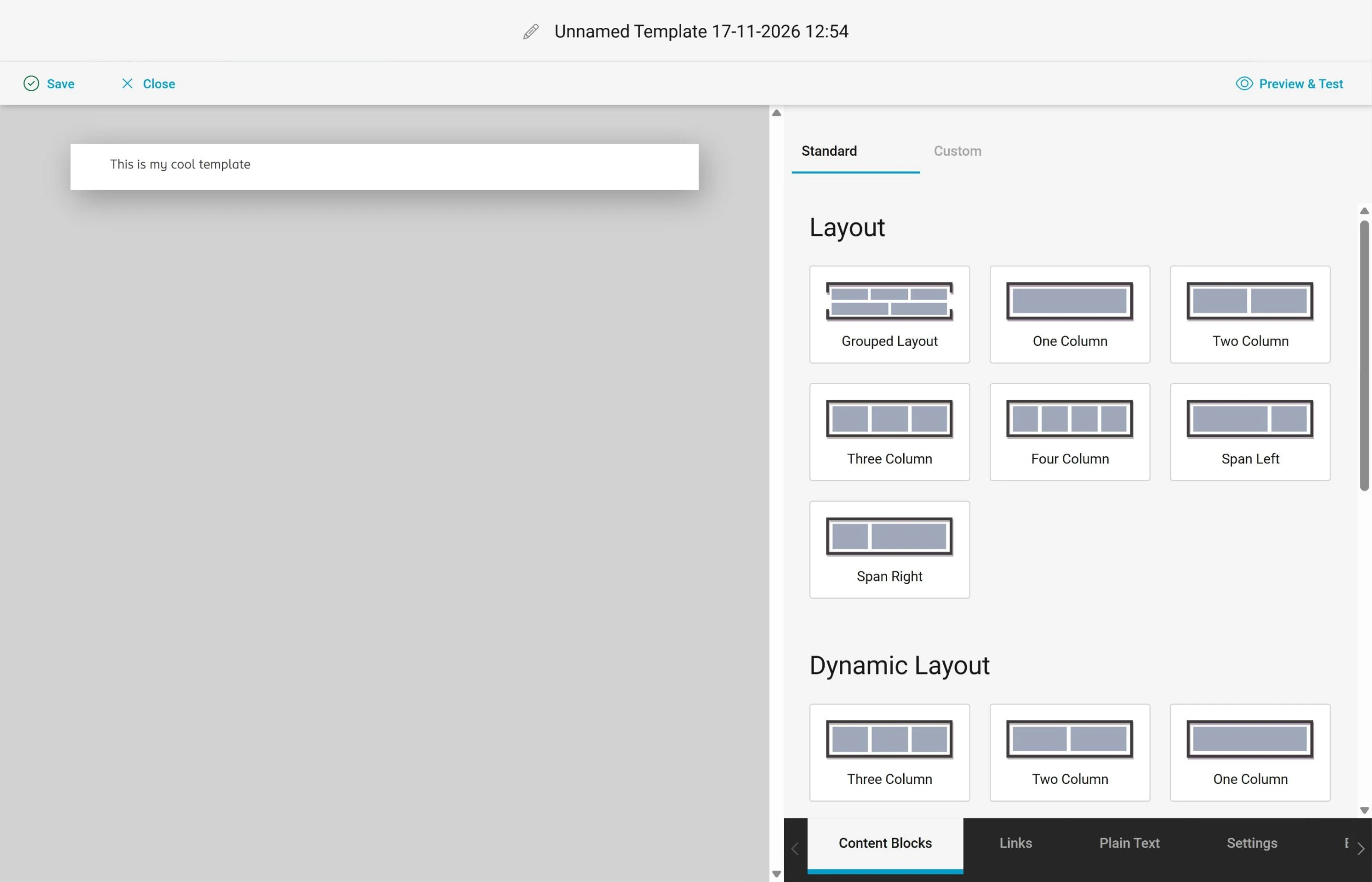
Template editor
The editor is structured as follows:
- Template name: The name is shown at the top centre. You can change the name using the pencil icon. A new template is initially called “Unnamed Template” with date and time, e.g. “Unnamed Template 17-11-2026 12:54”.
- Save: The button at the top left saves the template. The icon on the button shows the save status (see below).
- Close: closes the editor.
- Preview & Test: The button at the top right opens the preview of the template and lets you send the email to test recipients (see “Preview and test the created mailing”).
- Workspace: On the left, you build the template by drag & drop.
- Building blocks: On the right are the building blocks in the “Standard” and “Custom” tabs (see “Block: Layout” and “Block: Content”).
- Tabs at the bottom right: “Content Blocks”, “Links”, “Plain Text”, “Settings” and “Edit Design” (see “Tabs in the editor”).
Saving and Auto Save
The MAS saves a template automatically (Auto Save). The icon on the “Save” button shows the save status (see the figures below).
You can also save manually at any time with “Save”.

Orange icon: there are unsaved changes

Green icon: the template has been saved
Note
Simply opening a template in the editor can trigger a save. “Last Edited” in the overview then shows the time it was opened, even if nothing was changed.




