

 English
 Deutsch
English ✓
Content › Templates › Create Template › Create an initial template
Block: Layout
The Layout block contains all available layout paragraphs for designing (“Edit Layout”) and building the email template.
By default, 600 px are allotted for the widest element! (However, this also depends on the respective setting in the project and on how much padding the block has by default.)
The total dimensions of the email template per block are shown in the bottom right corner.
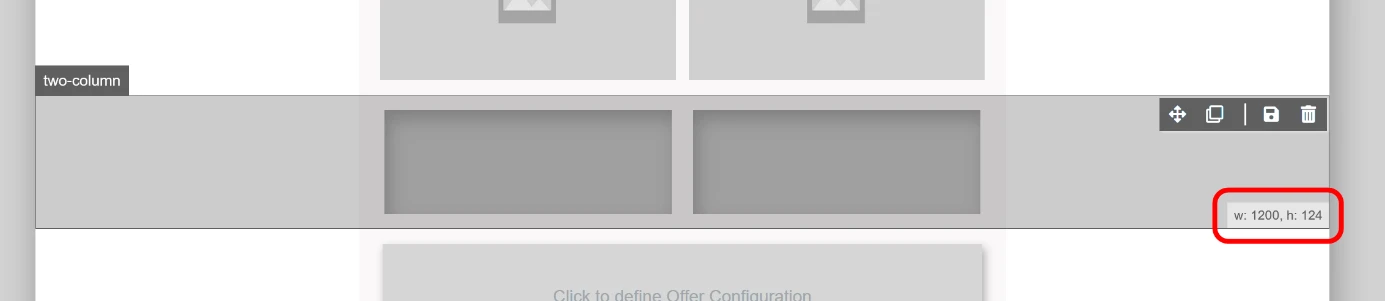
Dimensions of the entire template per block

“Layout” and “Dynamic Layout” building blocks
With drag & drop you can create an email template quickly and easily.

Layout blocks in Design Tools
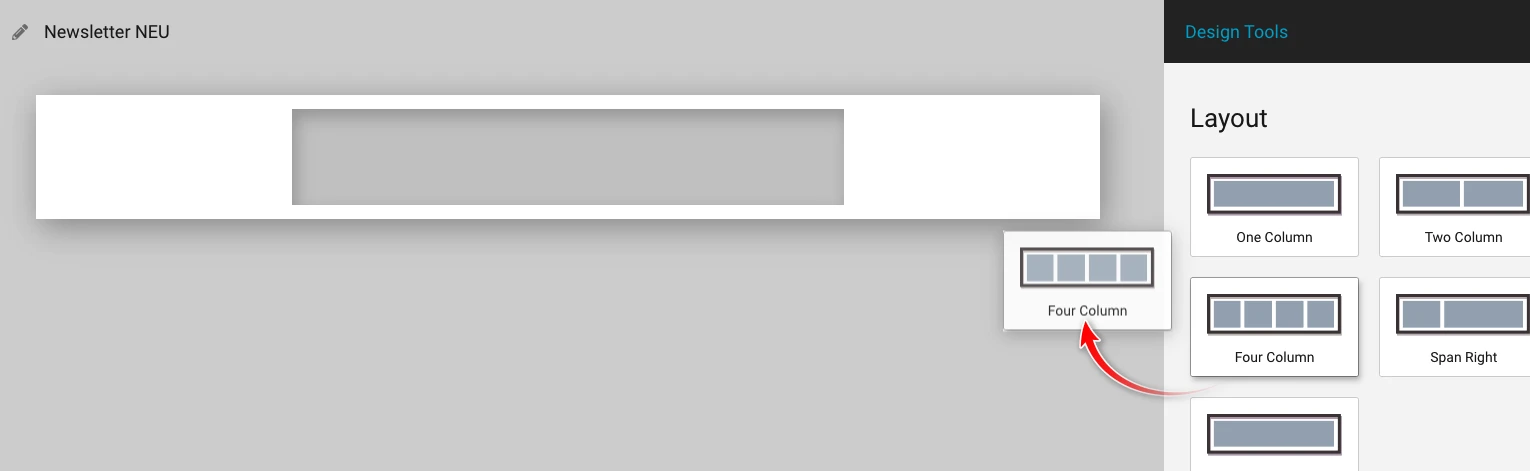
Creating a layout using drag & drop
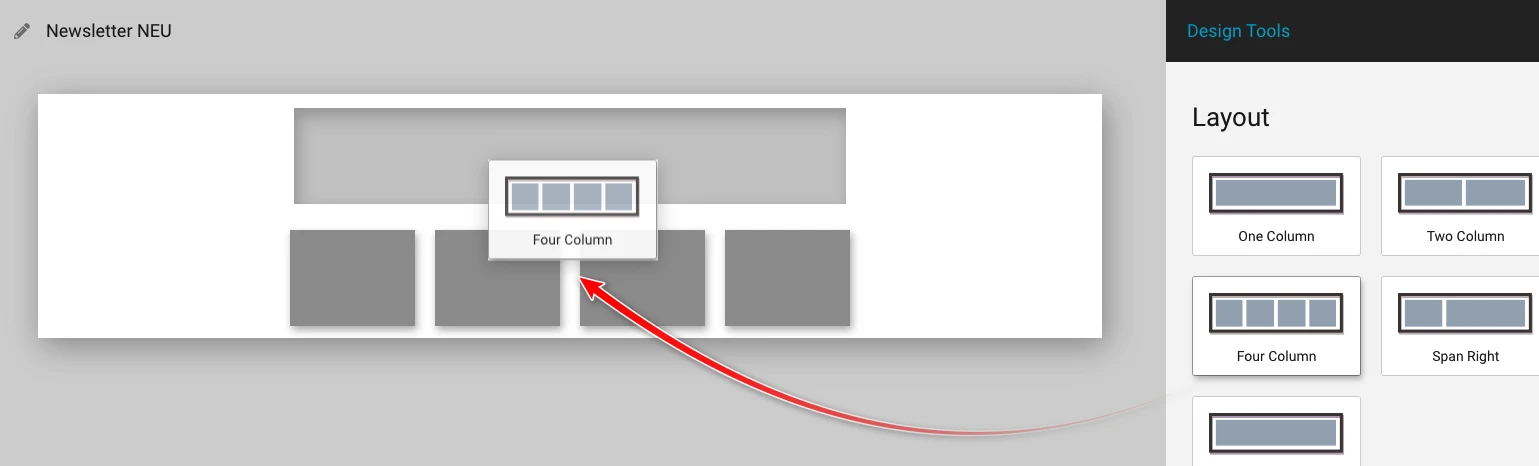
Positioning a layout block using drag & drop
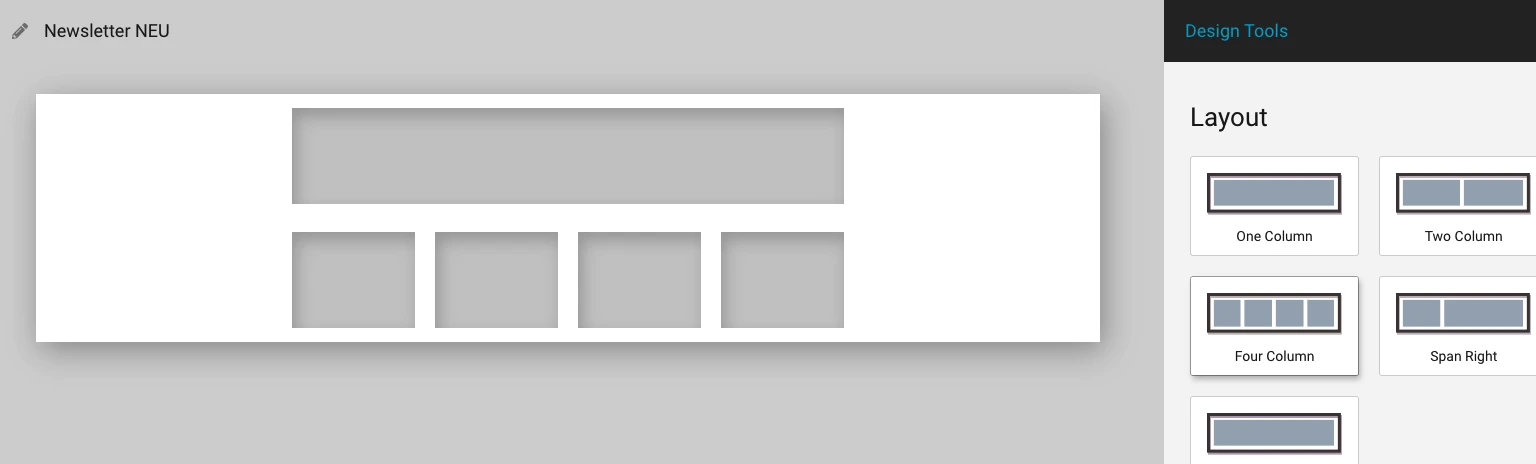
Created layout block (without content)
Various layout blocks are available for structuring the email template; use them as follows:
Layout
Overview of the layout blocks and their column division
In addition to the layout blocks in the table, the “Grouped Layout” block is available; it is described below.
With the special “Grouped Layout” block you can save prefabricated layouts in order to use them later for other templates.
To do this, drag the “Grouped Layout” block to the left into the editing area and then fill it with further layout blocks. You can also fill these layout blocks with content blocks and their content. Once the grouped block has been created, you can save it using the floppy disk icon and use it for later templates. The menu field at the top right of the block lets you reduce (collapse) the block in the view, move it and delete it.
You can also insert conditions within the block so that the individual blocks within the “Grouped Layout” are delivered selectively. You can also assign a condition to the entire group; the complete “Grouped Layout” block is then delivered according to this condition.
“Grouped Layout” button
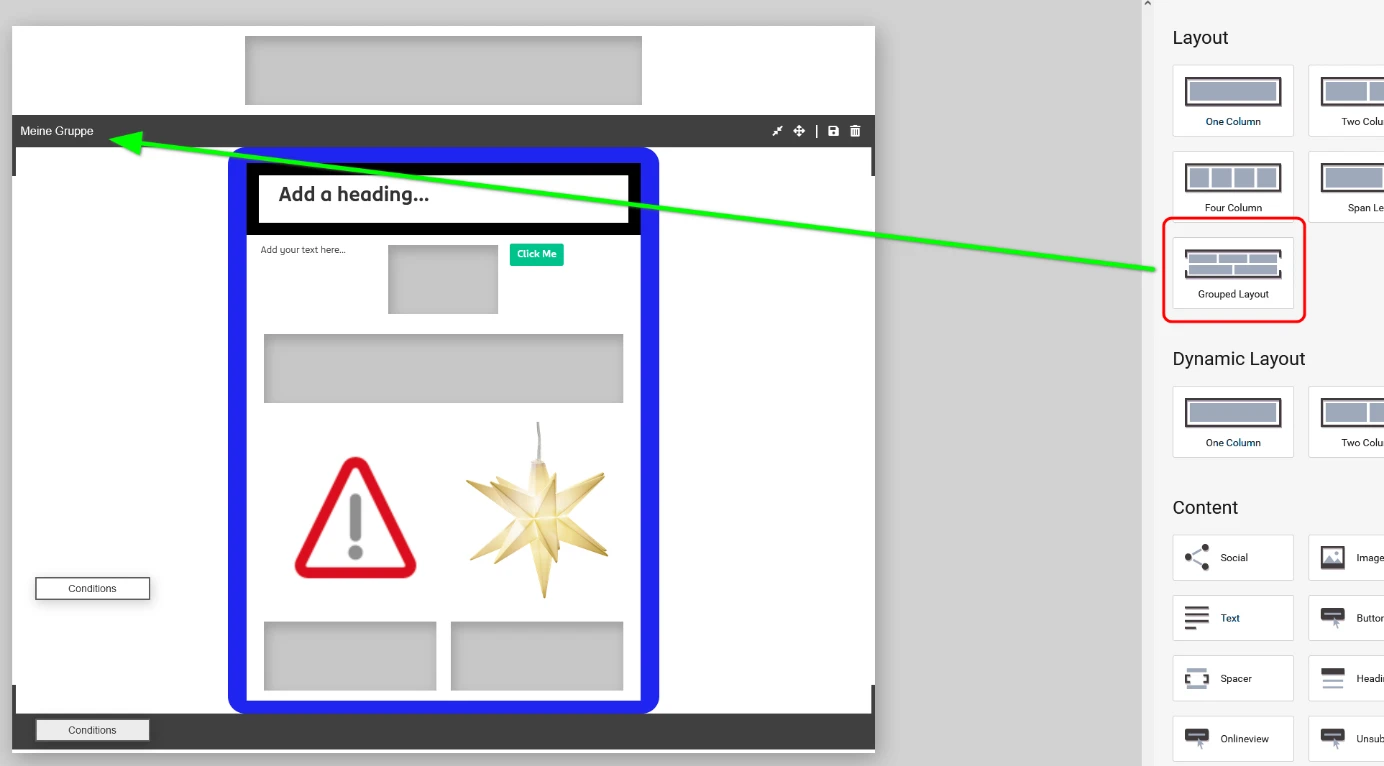
Using the “Grouped Layout” grouping function

Saving a Grouped Layout block
Dynamic Layout
Under “Dynamic Layout” the blocks “One Column”, “Two Column” and “Three Column” are available. They correspond to the layout blocks of the same name and are used for Dynamic Offers (see “Dynamic Offers”).
Editing the layout blocks (“Edit Layout”):
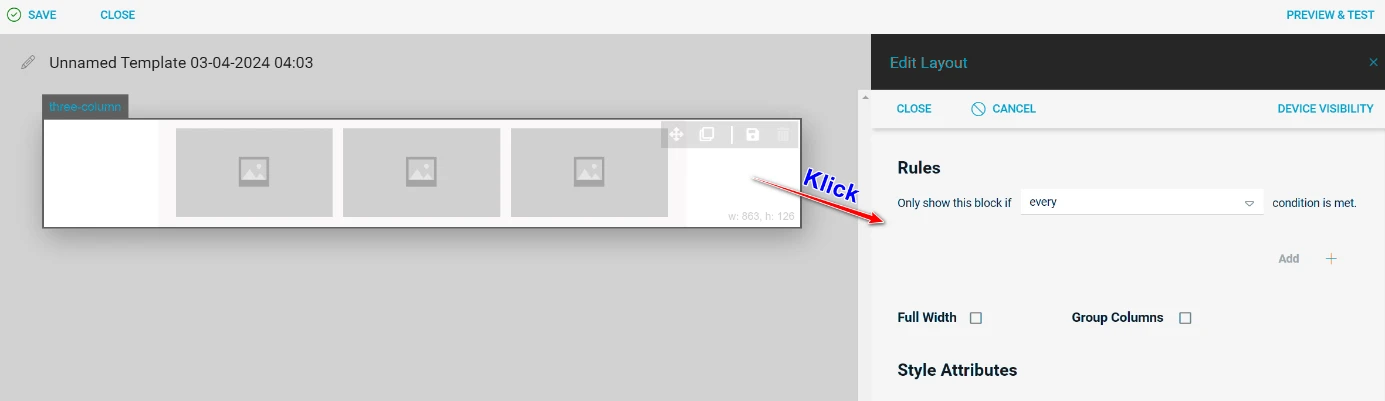
Clicking the white frame jumps to the Conditions block
You can adjust the properties of each block by clicking the white frame around the layout in the editing area on the left.
If, for example, an image is to border the edge of the template with no space displayed there, click in the right or left (white) area next to the content block and set the padding to 0 px. It is then advisable to do the same with the content block itself by clicking it and also setting its padding to 0 px.
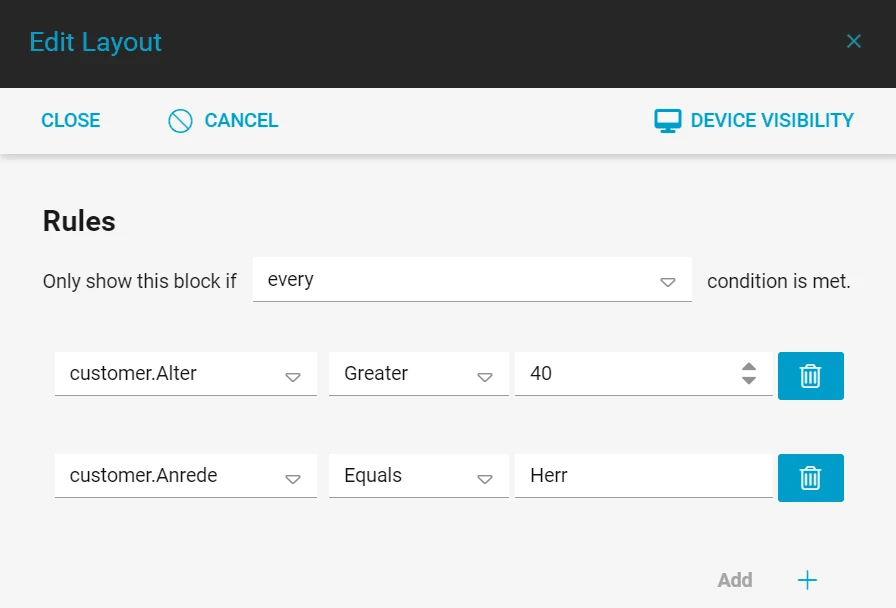
Example of rules (conditions) in the content block




