

 English
 Deutsch
English ✓
Content › Templates › Create Template › Create an initial template
Block: Content
Once the structure has been created, fill the layout blocks with content.
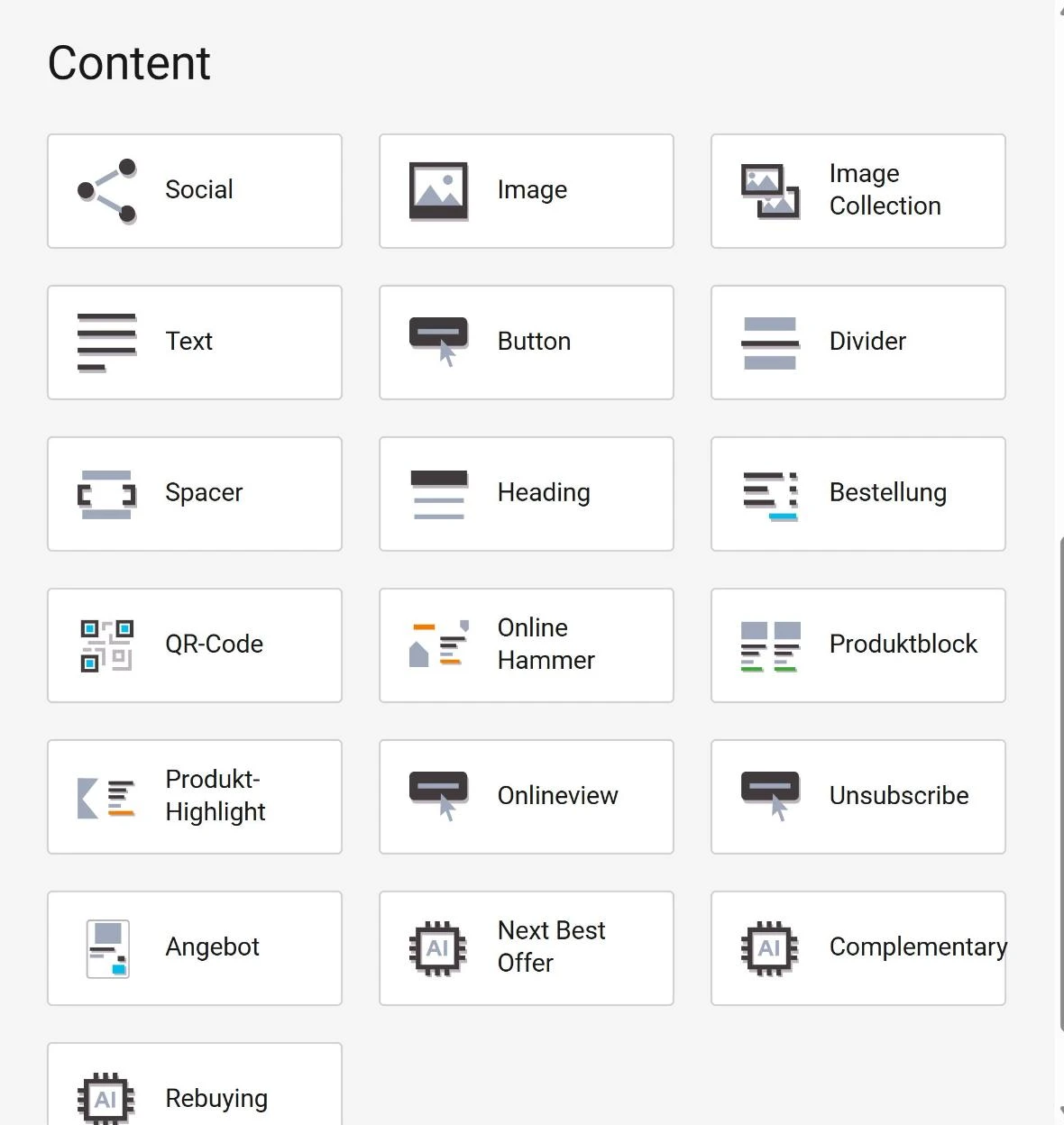
Content building blocks in the “Standard” tab
The dimensions of a content block are shown in pixels in the bottom right corner.
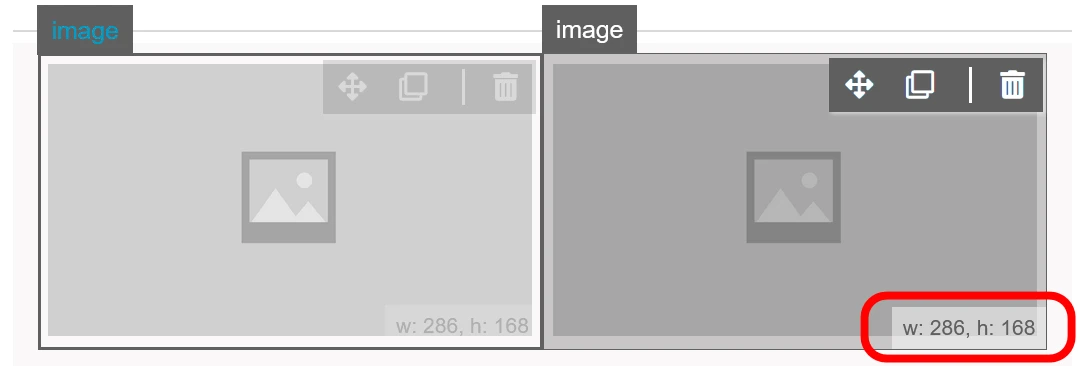
Dimension display of a content block
The following content blocks are available for this; they are described below:
Overview of the content blocks and their function
Depending on the project, further content blocks may be set up, e.g. for orders, QR codes or products. They also appear in the “Standard” tab under “Content”.
Topics in this chapter
Content-Block: Heading
Insert headings in various sizes.
Content-Block: Image
Insert images from the assets or via URL and link them.
Content-Block: Image Collection
Arrange several images side by side in one layout block.
Content-Block: Button
Design linked buttons in colour, shape and size.
Content-Block: Onlineview
Insert a link to the browser view of the email.
Content-Block: Unsubscribe
Insert the unsubscribe link that every mailing needs.
Content-Block: Social
Insert social media icons with links.
Content-Block: Spacer
Create space between blocks.
Content-Block: Widget
Custom-made blocks, e.g. for offers.
Content-Block: Divider
Insert dividing lines between sections of an email.




