

 English
 Deutsch
English ✓
Content › Templates › Create Template › Create an initial template › Block: Content › Content-Block: Text
AI text generator
The “Text” content block offers an AI text generator, the “AI Text Generator”. It uses artificial intelligence (AI) to revise texts: correct, shorten, expand, rephrase or change their tone. The result first appears as a suggestion and is only applied to the text once it has been confirmed.
This is how to use the AI text generator:
- Click the “Text” content block in the template. The “Edit Text” panel opens on the right.
- In the text editor, select the text to be revised.
- In the toolbar of the text editor, click the “AI Text Generator” icon (chip icon labelled “AI”).
- The selected text appears in the “AI Text Generator” window. At the top right, choose the language in which the text is to be revised.
- Under “Choose a Text Modification”, click the required modification. The result appears in the text field of the window.
- Click “Accept” to apply the suggestion to the text editor, or “Cancel” to discard it.
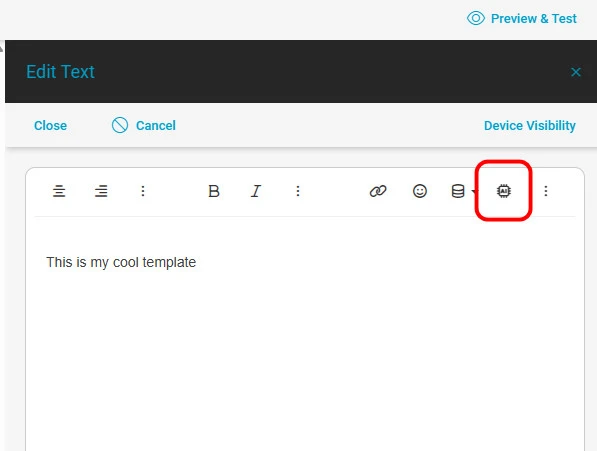
Figure 215: “AI Text Generator” icon in the toolbar of the text editor

Figure 216: “AI Text Generator” window with selected text and text modifications
The “AI Text Generator” window offers the following controls:
- Undo and redo: The two arrows at the top left switch between the previous versions of the text. This lets you take back a suggestion without closing the window.
- Language: The selection at the top right sets the language of the result. The options are English, German, Spanish, French and Danish.
- Choose a Text Modification: The buttons for the actual revision. They are explained with examples in the following table.
- Additional Options: An expandable section with further instructions for the AI (see below).
- Accept and Cancel: Apply the suggestion to the text or close the window without changes.
Text modifications of the AI Text Generator with examples
The examples show the general effect of each modification. The actual result of the AI may differ and is slightly different each time.
“Additional Options” lets you give the AI further instructions:
- Target Audience: The target group of the text, e.g. children, senior citizens or sports fans. The AI adapts the wording and form of address accordingly.
- Keywords: Terms to be included in the generated text.
- Maximum Characters: Maximum number of characters for the result. The default is 1000 characters.
The AI makes suggestions. Before applying them, check the content, facts, prices, legal texts and form of address. If the text contains datafields or field functions, check after applying that they are still intact (see “Datafields and field functions”).




