

 English
 Deutsch
English ✓
Start, structure and login/logout
Log in
Each MAS system has its own login address (see above). On the login page, enter your user name or email address under “Username or email” and your password under “Password”, then click “Sign In”. The eye icon next to the password field displays the password you have entered so that you can check it.
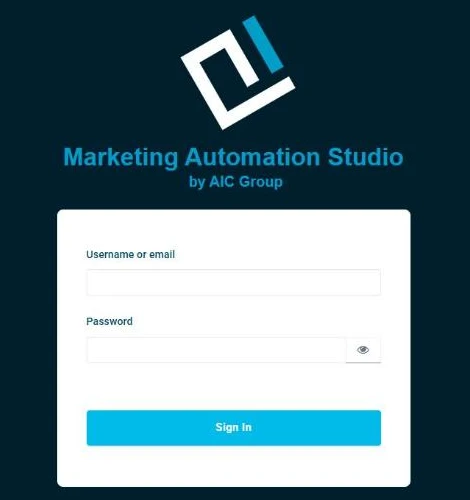
MAS login page
After you have logged in successfully, the overview of mailings under “Campaigns › Emails” opens (see “Overview”).

Entry point to the MAS: overview under “Campaigns › Emails”
The MAS is continuously being developed. If a new version has just been installed, the “Application Update” window appears during login with the question “This application has an update, reload?”. “YES” reloads the page; the current version is then available. Always accept the update with “YES”.
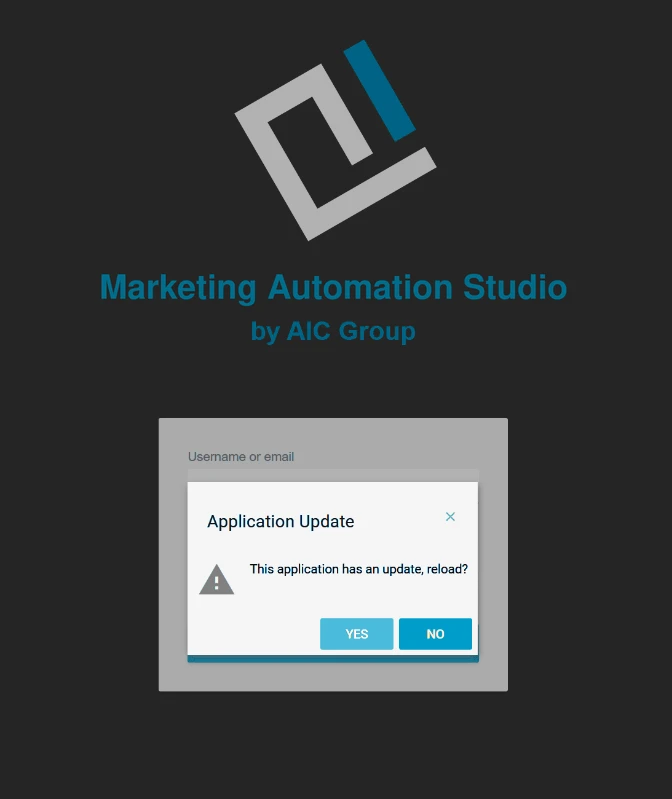
“Application Update” window during login
Topics in this chapter
Log in with two-factor authentication
Securing your login additionally with a QR code and an authenticator app.
Forgotten password
Resetting a forgotten password via an email link.




