

 English
 Deutsch
English ✓
Start, structure and login/logout › Log in
Log in with two-factor authentication
Login can additionally be secured with two-factor authentication. In addition to your password, you are then asked for a one-time code (“One-time code”) generated by an authenticator app on your smartphone.
If two-factor authentication is intended for a user account, the page “You need to set up Mobile Authenticator to activate your account” appears when you log in for the first time. Setup takes three steps:
- Install the app: install an authenticator app on your smartphone, e.g. FreeOTP, Microsoft Authenticator or Google Authenticator.
- Scan the QR code: open the app and scan the QR code displayed. If the code cannot be scanned, the “Unable to scan?” link will help.
- Enter the code: enter the one-time code from the app under “One-time code”, optionally enter a name for the device under “Device Name” (e.g. “Work smartphone”) and complete the setup with “Submit”.
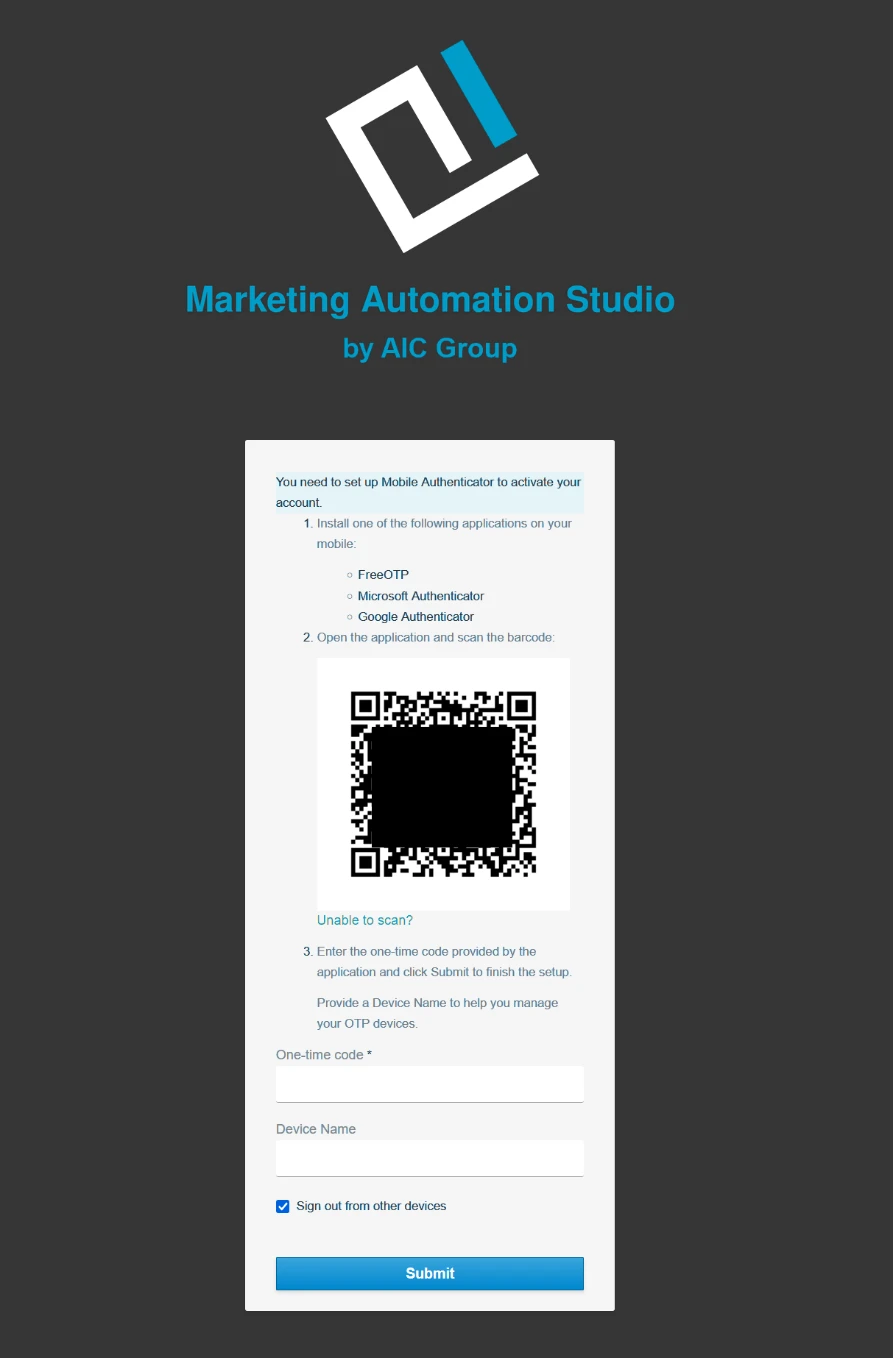
Setting up two-factor authentication via QR code
Each time you log in after that, you are asked for the current one-time code from the app after entering your user name and password.
Note
If “Sign out from other devices” is ticked, all other active sessions of this user are ended.




