

 English
 Deutsch
English ✓
MAS - Administration › Remote Services
Remote Services
Under “Administration › Remote Services” you connect external interfaces. A remote service calls an address via HTTP; the response can be used further in the MAS.
“Create Remote Service” opens the input form:
- Name and Description: name and description of the remote service
- Method and URL: HTTP method (e.g. GET) and address of the interface
- Parameters, Headers, Payload, Authorization: parameters, headers, content of the request and login credentials
- Send: sends a test request; the result appears below under “Response Body” and “Response Header”
- Mapping: mapping of the response data
“Save” saves the remote service. The list shows all remote services created, with name and description.
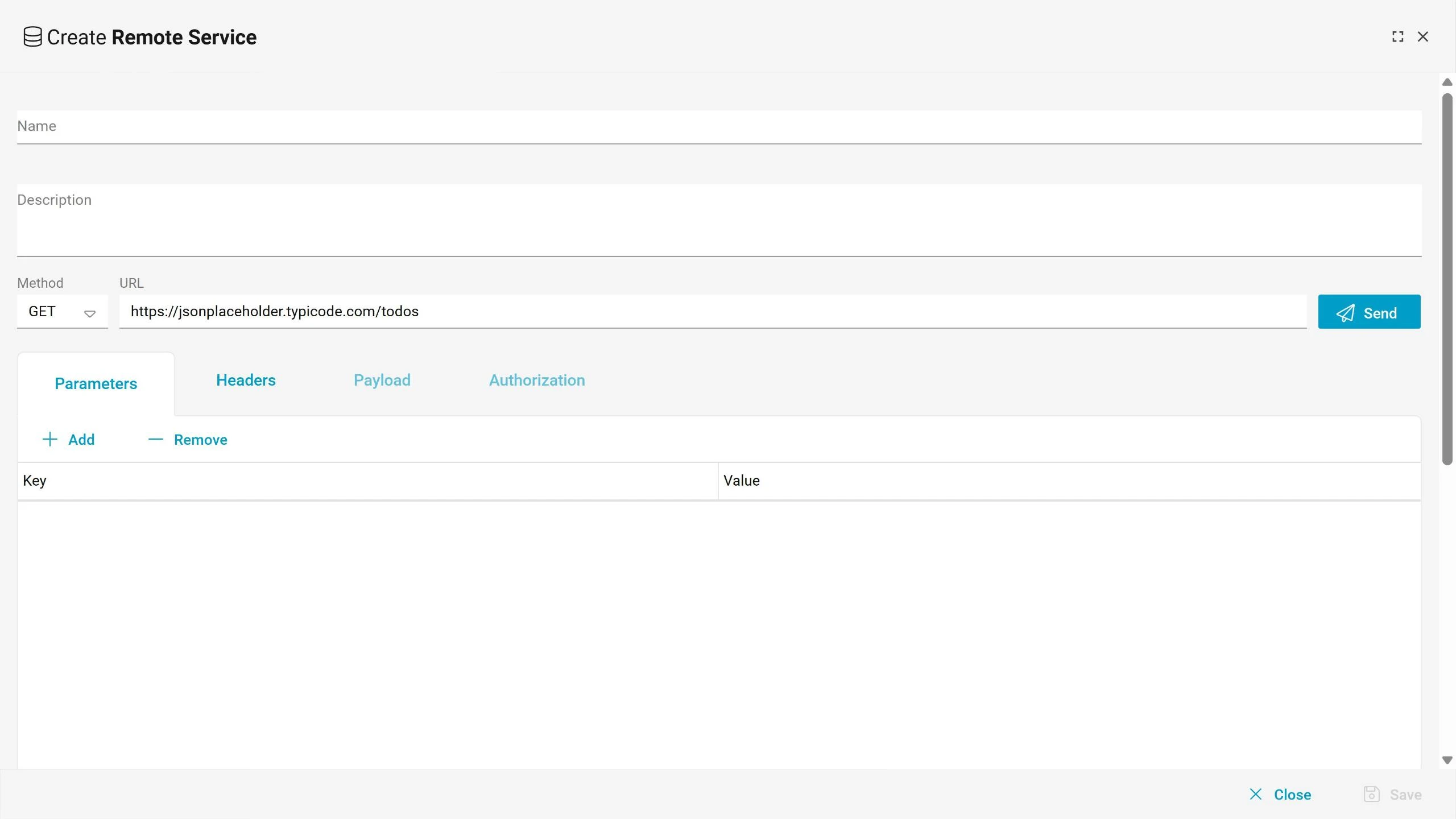
“Create Remote Service” form
Frequently asked questions
What do I need a remote service for?
With a remote service, you connect an external interface under “Administration › Remote Services”. It calls an address via HTTP, and the response can be used further in the MAS. Read more ›
How do I create a remote service?
Click “Create Remote Service” and enter the name, description, HTTP method and URL and, if required, Parameters, Headers, Payload and Authorization. Under “Mapping” you map the response data; “Save” saves the remote service. Read more ›
Can I test a remote service before saving it?
Yes, “Send” sends a test request. The result appears below under “Response Body” and “Response Header”. Read more ›
Can a remote service supply values for a contact field in workflows?
Yes, when you create a field in the customer data schema, you can optionally specify a remote service that supplies the value of the field at runtime in workflows. Read more ›




