

 English
 Deutsch
English ✓
MAS - Campaigns › Pushes
Pushes
Under “Campaigns › Pushes” you manage push mailings, i.e. messages that appear as push notifications on the recipients’ smartphones. The “Push Mailings” overview lists all push mailings created; use the search field to find them.
Click the “Create Push Mailing” button to create a new push mailing. As with emails, you choose between “REGULAR” and “TRANSACTIONAL”. To open an existing push mailing, use the edit icon at the end of the row. The form has three tabs: “Settings”, “Design” and “Analytics”.
Settings
Under “Settings” you define the name of the push mailing and the type of message: “Push Notification” and, optionally, “Combine with In-App Message” for an additional message within the app. “Additional Options” contains the provider used for sending (“Vendor”, e.g. Airship) and the app the message is sent to (“Apps”).
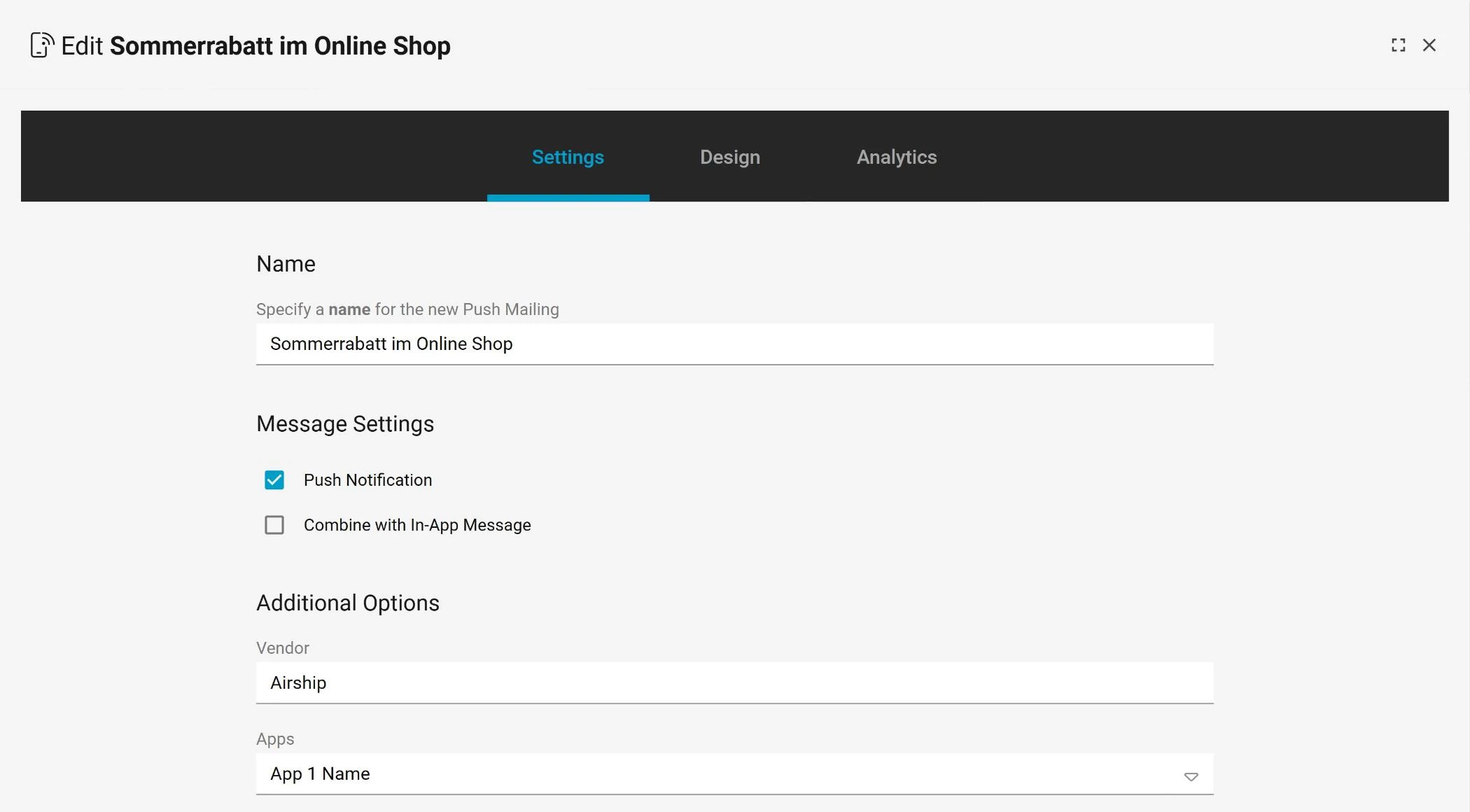
Push mailing – “Settings” tab
Design
In the “Design” tab you design the content: the text of the push notification (“Push Notification Text”), the action when the notification is tapped (“Actions”, e.g. “Home – Opens your app home screen”) and, optionally, a title, an image and a subtitle. On the left, a preview shows how the message appears on the device; use the selection above the preview to switch the view, e.g. “IOS Screen Locked”. Use “Send Test Message” to send a test message.
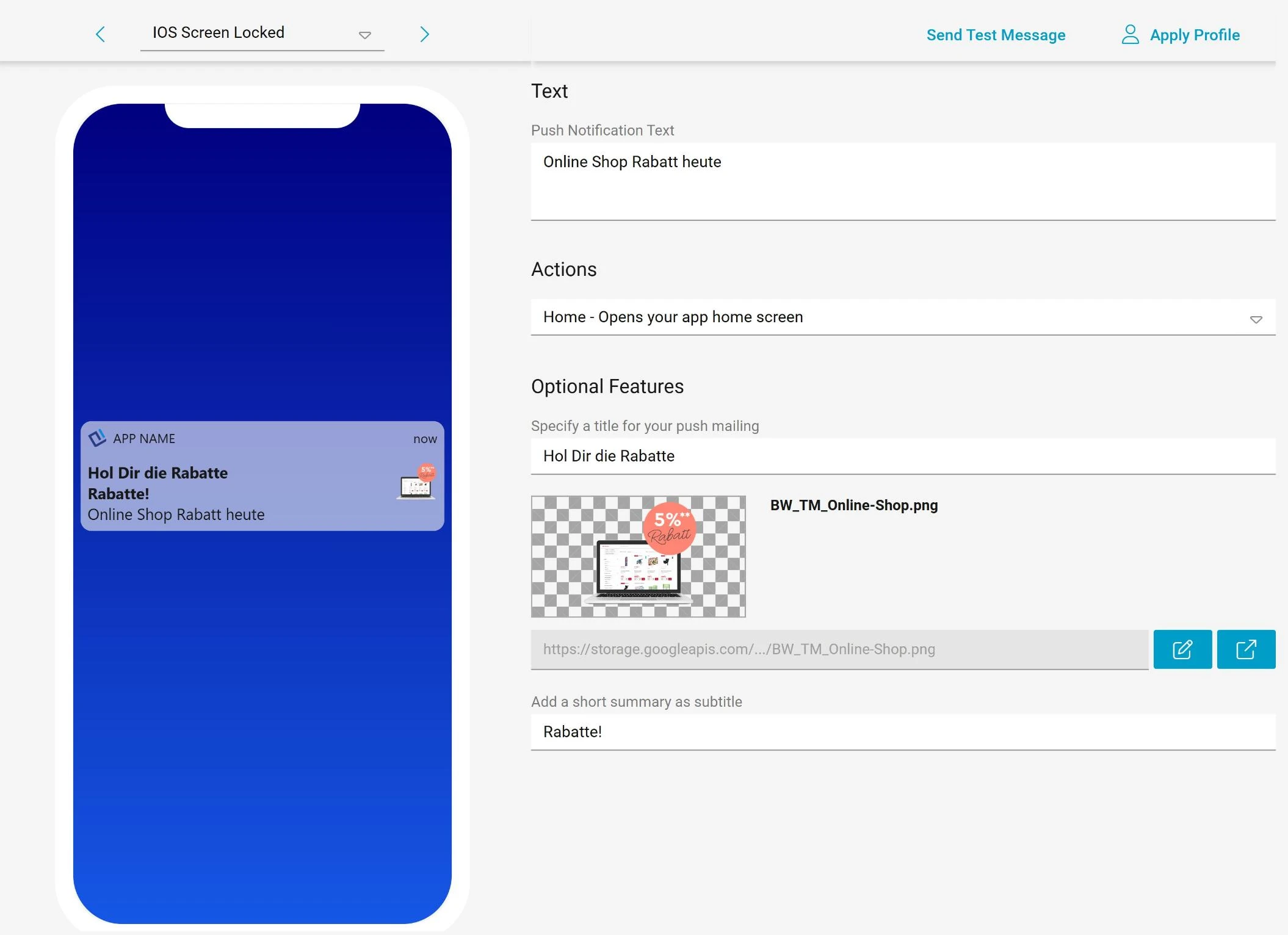
Push mailing – “Design” tab with preview
Analytics
The “Analytics” tab shows the evaluation of the push mailing in the sections “Overview”, “Performance” and “Conversions”. Data only appears once the mailing is active and generates events.
“Activate Mailing” at the bottom left activates the push mailing. “Save” saves changes; “Cancel” closes the form after a confirmation prompt without saving.
Frequently asked questions
What is a push mailing?
A push mailing is a message that appears as a push notification on the recipients’ smartphones. Push mailings are managed under “Pushes” and, like emails, are created as “REGULAR” or “TRANSACTIONAL”. Read more ›
How do I check a push mailing before sending it?
In the “Design” tab, a preview on the left shows how the message appears on the device, e.g. in the “IOS Screen Locked” view. You can also send a test message via “Send Test Message”. Read more ›
Can I combine a push notification with an in-app message?
Yes. In the “Settings” tab, select the option “Combine with In-App Message” in addition to “Push Notification”. Read more ›
Why does the “Analytics” tab of a push mailing show no data?
Data only appears once the push mailing is active and generates events. You activate it with “Activate Mailing” at the bottom left. Read more ›




