

 English
 Deutsch
English ✓
MAS - Contacts
Contacts
Under the “Contacts” menu item, customer data is displayed in a table.
You can create, edit and delete customer contacts.
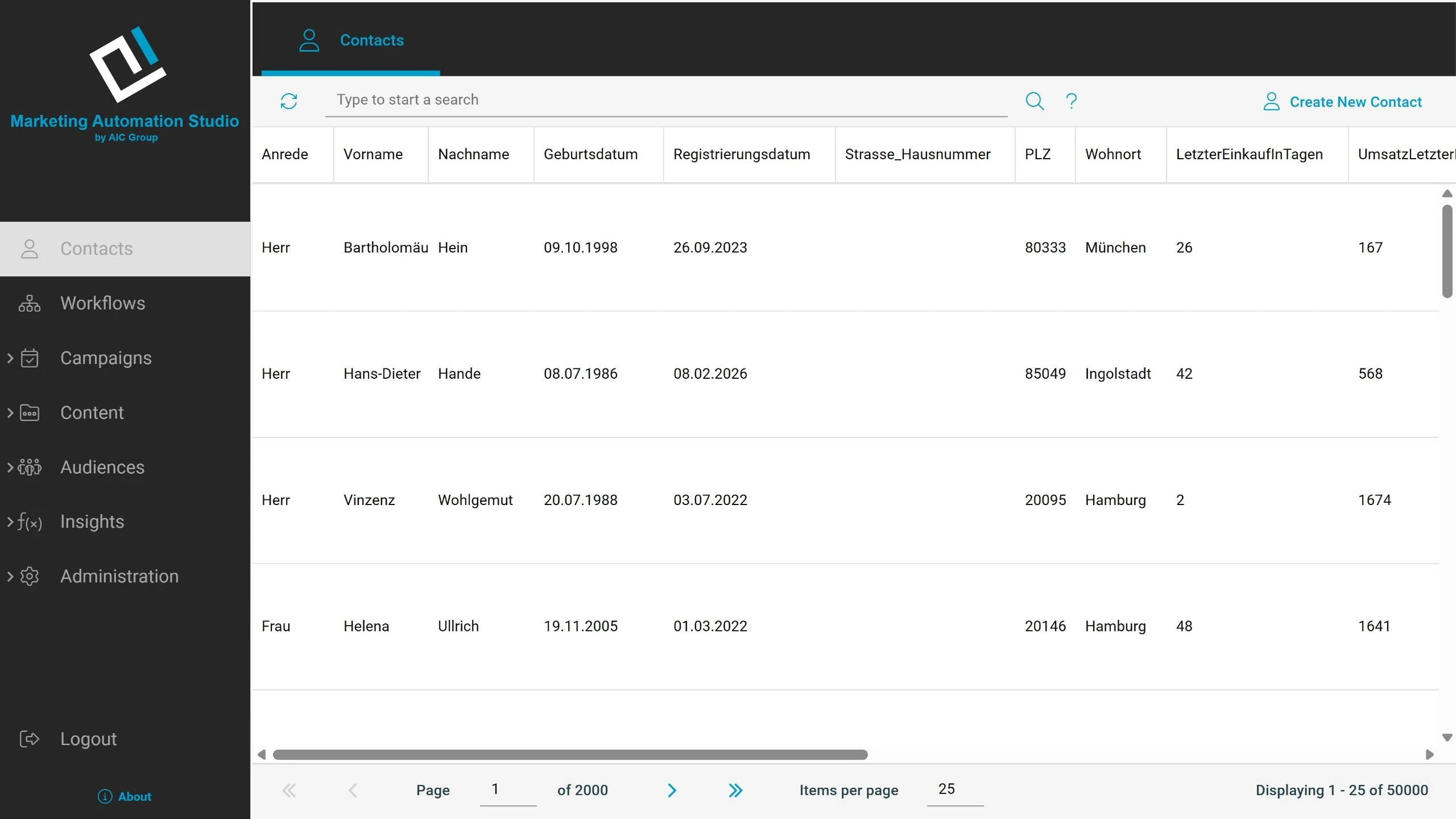
Contacts start page
The customer schema is always individual; columns and their order may differ from project to project. The email address is mandatory.
Search contacts
Use the “Type to start a search” search field above the table to search for contacts. By default, all text fields of the contacts are searched. The question mark next to the magnifying glass opens the “Query syntax help page” with all search options. The most important ones are:
- Wildcards: “?” replaces exactly one character, “*” any number of characters. For example, “Mar* Be?er” finds “Martin Beier” and “Marc Beyer”.
- Regular expressions: the search pattern is placed between two forward slashes, e.g. “/joh?n(ath[oa]n)/”.
- Search in a specific field: field name with the prefix “customer.”, followed by a colon, e.g. “customer.status:active”.
- Ranges: ranges can be specified for date, number and text fields. Square brackets include the limit values, e.g. “[min TO max]”.
Searches with wildcards can use a lot of system resources and may therefore be slow.

Query syntax help page of the contact search
Topics in this chapter
Create New Contact
Create a new contact – with the email address as a mandatory field.
Frequently asked questions
How do I create a new contact?
Click “Create New Contact” at the top right; the “New Contact” input screen opens. The “E-Mail” field must contain a valid email address, otherwise the contact cannot be saved. Read more ›
Why can’t I use the “Actions”, “Activities” and “Insights” tabs?
These tabs are only available once the contact has been saved. Save the new contact first with “Save”. Read more ›
How do I search a specific field of a contact?
In the search field, enter the field name with the prefix “customer.” and a colon, e.g. “customer.status:active”. Without a field name, all text fields of the contacts are searched. Read more ›
How do I manually enrol a contact in a workflow?
Open the contact and, in the “Actions” tab, select the workflow you want under “Enroll” in the “Workflow Enrollments” section. The “Active” and “Completed” tabs show the running and completed workflows of the contact. Read more ›
Where can I see which emails a contact has received and opened?
The “Activities” tab of the contact shows its activities sorted by month, e.g. sent and opened emails with the time. The related metrics such as “Delivered” or “Unique Open Rate” are shown in the “Insights” tab. Read more ›




