

 English
 Deutsch
English ✓
MAS - Content › Assets
Assets
The term asset covers a collection of digital content. This is also generally referred to as digital asset management (DAM).
Under “Content › Assets”, all the digital content needed for mailings, mainly image files, is stored and named. The files can be found again via their thumbnail and reused. There is a search function and two views: as a list or as a gallery.
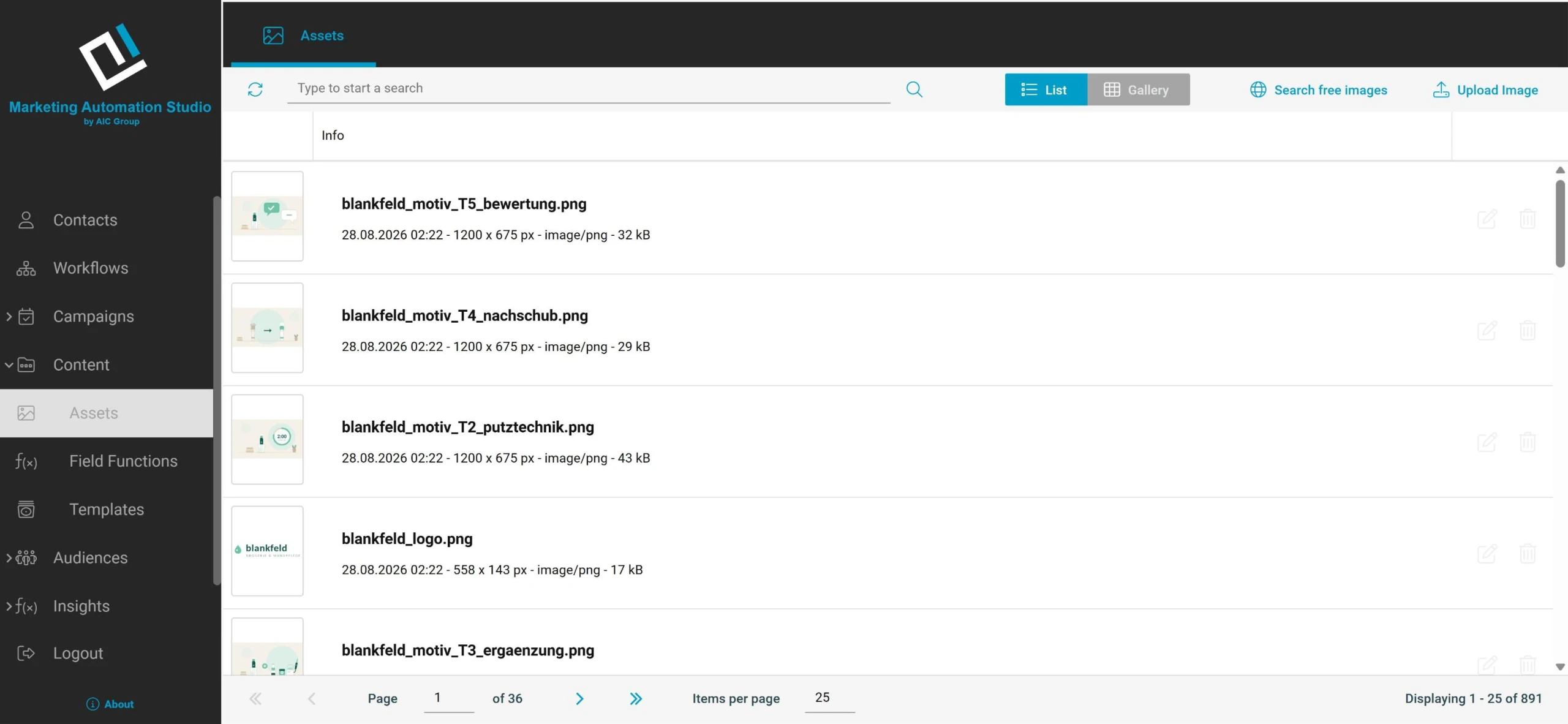
Assets under “Content › Assets” in the list view
Topics in this chapter
Structure
Naming the files and paging through the assets.
Frequently asked questions
How do I upload an image to the assets?
Click “Upload Image”, enter a name under “Give your new asset a name”, select the file via “Select Image File…” and click “Upload”. The MAS confirms the process with “The image was successfully uploaded”. Read more ›
Which image formats are supported?
JPG/JPEG, PNG, GIF and SVG are supported. SVG should not be used for emails, as many clients do not support this format; JPEG is recommended for photos and PNG for graphics or images with a transparent background. Read more ›
May I use the images from the free image databases without restriction?
No, the images from Pixabay, Unsplash and Pexels can be used free of charge under their respective licence terms, but they are not “rights-free”. Before use, check the licence terms of the selected image, especially for identifiable persons, brands, logos or works of art. Read more ›
How do I rename an image afterwards?
Open the detail view of the image, e.g. via “Select” in the gallery view, change the name in the name field and confirm with “SAVE”. Read more ›
Why can’t I see an image that a colleague has just uploaded?
The view needs to be refreshed. Click the refresh icon (two arrows in a circle) to the left of the search field so that images uploaded in the meantime appear. Read more ›




